

As someone who has spent years helping e-commerce businesses improve their Google Shopping results, I know there is no single “magic trick” to success. At FeedArmy, we stay up-to-date with all changes related to Google Shopping and Performance Max, and we’ve learned that success comes from getting many details right. In this article, I’ll walk you through a comprehensive checklist of solutions – from accurately tracking conversions to optimizing your product feed, resolving policy issues, and more – to help boost your Shopping campaign performance.
In this guide, we will be talking about:
- Ensure Accurate and Complete Conversion Tracking
- Optimize Your Product Feed Quality
- Resolve Google Merchant Center Policy Issues
- Audit Search Terms and Use Negative Keywords
- Choose the Right Bidding Strategy
- Improve Campaign Structure and Segmentation
- Allocate Budget Wisely and Scale Gradually
- Optimize Product Pages for Conversions
- Align with the Customer’s Buying Funnel
- Performance Max Campaign Best Practices for 2024–2025
- Manage Stock and Product Availability
1. Ensure Accurate and Complete Conversion Tracking

The first item on our checklist is making sure your conversion tracking is rock-solid. You can’t optimize for sales if you aren’t accurately measuring them! Here’s what to do:
- Set up Google Ads conversion tracking correctly: Verify that every purchase (and other key actions) triggers a conversion in your Google Ads account. Use Google’s global site tag or GA4 integration to track sales on your thank-you page. Double-check that the conversion value (revenue) is being passed correctly for each sale.
- Capture all types of conversions: Don’t stop at online cart checkouts. If you often take orders by phone or get inquiries by email, consider setting up call tracking and email conversion tracking as well. This provides a more comprehensive view of what ads result in sales. For example, I’ve seen cases where specific search terms looked unprofitable only because phone orders weren’t tracked – once call tracking was added, those terms turned out to be valuable leads!
- Test and verify: Use tools like Google Tag Assistant or Chrome Extensions for Shopify Pixel Tracking to test purchases to ensure the tracking fires properly. Also, ensure that you mark your primary conversion actions as “Primary” (for bidding) in Google Ads, so that Smart Bidding algorithms can utilize them.
- Leverage enhanced conversions (optional): In 2024, Google offers enhanced conversions, allowing you to send hashed customer data (such as email) to improve tracking accuracy when cookies are limited. If you have the dev resources, implementing this can slightly boost reported conversions. From my testing, it can increase by 6%.
Overall, accurate conversion tracking is the foundation of optimization. It lets you trust the data when you later adjust bids or budgets for what’s converting well (and cut what isn’t).
2. Optimize Your Product Feed Quality

Your product feed in Google Merchant Center is the lifeblood of Shopping ads – it’s like the roots of a tree, and if the roots are weak, the tree will fall. High-quality feed data boosts your ad relevance, ranking, and click-through rates. Here’s a quick checklist for feed optimization:
- Compelling, keyword-rich titles: Your product title is one of the biggest factors in ranking and relevance. Ensure each title clearly describes the product, incorporating important keywords (such as product type, brand, model, color, etc.), and omit filler words. A good practice is to keep titles around 60–80 characters for optimal visibility or use 150 for maximum keyword usage. For example, instead of “Stylish Shoes Model 1234”, use “Nike Air Zoom Running Shoes – Blue, Men’s Size 10” if that’s the product. This specificity helps match your ads to the right searches.
- Clear, high-quality images: Use high-resolution product images with a clean background that focuses on the product itself. Avoid any watermarks, logos, or extra text on images – not only do these distract shoppers, they’re actually policy violations. Google requires images at least 1300×1300 pixels, so aim for that or higher quality, which allows you to increase your eligibility for the Google Trusted Store Badge. Your image is often the first thing people see, so make it count with good lighting and angles.
- Include GTINs and unique identifiers: If your products have manufacturer-assigned barcodes (GTIN/UPC/EAN), always include them in your feed. Providing the correct GTIN can significantly improve your ad performance, as Google can more confidently match your product to user queries and display automatic product reviews or annotations. Missing GTINs for products that have them can hurt your reach.
- Fill in all relevant attributes: The more complete your feed, the better. At a minimum, include brand, category (Google Product Category), product type, description, price, and availability. If you sell apparel or variants, add attributes like color, size, gender, age group, etc. Providing these variant attributes helps your products appear in filtered searches (e.g., someone filtering by “blue” or “size M”). For instance, not adding a color can mean your item won’t display when a user filters results by color. Also, look into product details and product highlight attributes.
- Use accurate pricing and availability: Always ensure that the price and stock status in your feed match those on your website. Google Shopping is dynamic and updates fast – if something goes out of stock or changes prices, your feed should update promptly (at least once a day). I recommend setting up daily feed fetches or automatic updates. This way, if a product sells out, Google knows to stop showing it, so your budget shifts to in-stock items. Few things annoy shoppers (and hurt your conversion rate) more than clicking an ad to find the product is unavailable.
- Avoid policy violations in data: Ensure your feed text doesn’t include promotional language (such as “Free shipping,” ALL CAPS, or emojis) that Google prohibits. Also ensure your products comply with Google’s policies. If some products are disapproved, address the issue – whether it’s fixing the data or requesting a review if you believe it’s a mistake.
In short, treat your feed as a living, critical asset. Regularly audit it for errors or warnings in the Merchant Center and fix them. High-quality feed data not only prevents your products from being disapproved but also improves your campaign performance.
3. Resolve Google Merchant Center Policy Issues

Policy compliance is non-negotiable for Google Shopping. If your Merchant Center has any policy violations or account issues, those need immediate attention. Here’s how to stay on the right side of Google’s rules:
- Monitor your Merchant Center diagnostics: Log in to Merchant Center and check the Products > Needs Attention tab regularly. Look for any policy violation flags or disapproved products. Google may disapprove items for reasons such as unclear checkout fees, misleading claims, or prohibited content. If you encounter issues, click on them to view details and resolve them as necessary.
- Address common policy requirements: Ensure your website meets all the requirements for Shopping ads. For example, you must have a visible refund & returns policy on your site that customers can easily find. Your checkout process should be secure (SSL/https is required). Also, display clear contact information. These factors help with Google’s “misrepresentation” policy, which is a common reason for account suspension. Essentially, Google wants to see that you’re a legitimate retailer with transparency regarding who you are, what you sell, and how you handle customer service.
- Fix product-level disapprovals: If certain products are disapproved (for example, for incorrect data or policy violations like promoting prohibited items), take action. Edit the feed to correct any inaccuracies and remove disallowed keywords (e.g., “cheap” or “#1 Best”)If you sell restricted products (such as adult items, alcohol, or supplements), ensure you follow the specific policies for those categories, including proper labeling and destination requirements.
- Stay up-to-date on policy changes: Google occasionally updates its Merchant Center policies. I review the policies and any news-related information daily. For instance, Google has tightened its rules on items such as medical products and trademark usage in recent years. By staying informed, you can preemptively adjust your site or feed to remain compliant.
- When in doubt, ask or appeal: If you believe a suspension or disapproval is in error, you can contact Google support or file an appeal with evidence. Be polite and provide documentation. That said, prevention is better – it’s easier to maintain compliance than to fight to get reinstated. However, ensure you do not appeal without spending a lot of time first fixing your website/business model. I see many merchants appeal because they assume they are not violating anything without checking the policies.
Being proactive about policy compliance not only avoids the panic of sudden account suspensions but also creates a trustworthy shopping experience for your customers. Google rewards merchants who consistently follow the rules.
4. Audit Search Terms and Use Negative Keywords

One of the fastest ways to improve a Shopping campaign is by pruning away traffic that doesn’t convert. Google Shopping (both Standard Shopping and Performance Max campaigns) will match your products to a variety of search queries – some will be highly relevant, while others may not be as much. That’s why search term audits and negative keywords are critical.
Regularly check the Search Terms report: In your Google Ads account, for a Standard Shopping campaign and soon for Performance Max in 2025 as well, you can review the Search Terms report to see what search queries triggered your ads and got clicks. You’ll likely find some irrelevant searches or very broad terms that users typed in. For example, if you sell luxury leather wallets and see queries like “cheap wallet free” or “wallet phone case” that aren’t a good fit, those are hurting your performance. However, be very careful to understand Google also matches based on consumers’ historical behavior. For example, if a user has historically searched for iPhone 14 cases and then searches for ‘phone cases,’ don’t assume that you should exclude ‘phone cases.’ Google has shown your product to searches where Google knows they were indeed searching for an iPhone 14 case.
Add negatives to filter out bad queries: Adding negative keywords prevents your ads from showing up for irrelevant or low-quality searches that are unlikely to convert. Focus on terms that spent a lot with no sales. Some common ones to negate:
- Irrelevant searches: e.g. searches for products you don’t sell (if you sell “running shoes”, you might negate “running clothes” if it’s triggering your ads) or wrong user intent (someone searching “DIY shoe rack” when you sell shoes).
- Too broad, low-intent terms: Single-word searches or very generic terms that rarely lead to purchases. If “shoes” or “wallet” by itself is spending budget with no conversions, consider adding negatives or using campaign priorities to funnel those to a specific campaign (more on structure later). Unless you are focused on brand awareness.
- Recurring non-converting terms: Perhaps a specific product or model receives clicks, but people never make a purchase – investigate the reason. If it’s not an important term, exclude it. For instance, if “XYZ brand gift card” keeps matching but you don’t sell gift cards, negative it.
- Competitor or informational searches: If you see people searching things like “refund policy” or “how to clean leather wallet” triggering your Shopping ad, that’s usually not a buying intent – negative out obvious research-oriented terms.
By trimming these out, you’ll improve your click-through rate and conversion rate because only relevant searches remain. Better CTR and conversion rates also send positive signals to Google’s algorithm, which can enhance your ad rankings over time.
Pro tip: For Performance Max campaigns, search terms reports and excluding keywords will come in 2025.
Make it a habit, say every week or two, to audit your search queries. It’s like weeding a garden: remove the weeds so the flowers can thrive. The result is a more focused spend on queries that actually drive sales, resulting in a better ROI.
5. Choose the Right Bidding Strategy

Bidding strategy can make or break your Google Shopping performance, especially as Google offers more automated bidding options. The “right” strategy depends on your goals, data, and comfort level. Let’s break down the main options and when to use them:
- Manual CPC Bidding (with or without Enhanced CPC): This old-school approach lets you set your own max CPC bids for products or product groups. Manual bidding is only available in Standard Shopping campaigns (Performance Max is fully automated). I often recommend starting with Manual CPC if you’re new or launching a small campaign, because it gives you control and helps you gather baseline data. Start with low bids – this keeps your spending in check while you test the waters. As data comes in, you can raise bids on well-performing products and lower or exclude the poor performers.
- Automated Bidding – Maximize Clicks: This strategy automatically adjusts bids to get as many clicks as possible within your budget. It’s simple and can be helpful if your goal is traffic and you’re less concerned about conversion efficiency (like maybe you want to drive visits to new products to gather data). Note: Maximize Clicks is only for Standard Shopping, not PMax. Use with caution – more clicks don’t always mean quality clicks. Monitor your spending so it doesn’t chase cheap but unqualified traffic.
- Automated Bidding – Maximize Conversions (or Conversion Value): These strategies enable Google to utilize its machine learning to optimize conversions or revenue within your budget. They work best when you already have sufficient conversion data.
- Maximize Conversions will try to get the highest number of conversions for your daily budget. You can also set a target CPA (cost per acquisition) if you have a specific cost goal.
- Maximize Conversion Value will focus on total revenue – great if your products have varying prices. You can add a target ROAS (Return on Ad Spend) goal if, for example, you need a 5x ROAS to achieve profitability. Google will then bid higher or lower to try to meet that return on ad spend (ROAS). For example, Target ROAS is explicitly designed to maximize conversion value (sales revenue) while achieving your desired ROAS percentage.
- These automated strategies are available in both Standard Shopping and Performance Max. Performance Max campaigns by default, use Maximize Conversion Value bidding (often with a target ROAS that you set based on your goals).
- When to use which: If you have low conversion volume (say, under 15 conversions per month), fully automated strategies might struggle – they learn from data, and you just don’t have much yet. In that case, manual or a “Maximize Clicks” to gather more traffic data might be better initially. If you have decent conversion data (say 30+ conversions in the past month), testing Maximize Conversions or ROAS could boost results. Another great tactic, if you have less than 30 purchases in a month, is to use add-to-cart conversions as a primary conversion without conversion value. Target ROAS is ideal when profitability is key – e.g., a small store with tight margins might say “I need at least 400% ROAS”; a setting that tells Google to prioritize efficiency, though it may sacrifice volume. On the other hand, if your goal is growth and you have good margins, you might use Maximize Conversions to grab more total sales within your budget.
- Monitor and adjust: Regardless of the strategy you choose, keep a close eye on performance. Allow automated bidding a few weeks to “learn,” but if it’s not meeting expectations, you may need to adjust your targets or switch strategies. For example, suppose Maximize Conversions is spending your entire budget but yielding a too-high CPA. In that case, you might consider switching to a Target CPA or lowering your target CPA. Or if Target ROAS isn’t spending much (too restrictive), you may need to reduce the ROAS target. It’s all about finding the sweet spot where you’re getting good sales volume at acceptable cost.
Remember, there’s no one-size-fits-all bidding strategy. I’ve seen some small e-commerce folks do well with manual bidding for years, and others thrive after handing the reins to Google’s algorithms. The key is to align the strategy with your current needs: control vs. automation, volume vs. efficiency. And don’t be afraid to experiment when your circumstances change.
6. Improve Campaign Structure and Segmentation

Many advertisers throw all products into one campaign and one ad group – that simplicity is easy to start with, but it severely limits your ability to optimize. Improving your campaign structure is one of the most significant wins for enhancing Google Shopping performance. The goal is to segment your products and traffic, allowing you to bid and budget more precisely.
Here are some structural improvements to consider:
- Use multiple ad groups or product groups: Don’t bid the same amount on a $5 trinket as on a $500 high-end product! By default, a single product group means one bid for everything when using standard shopping. Instead, subdivide your products into groups based on attributes like Category, Brand, Product Type, or Custom Labels. Google Ads lets you break down the product group hierarchy using these attributes. For example, you might create product groups for each major product category, or separate groups for high-margin vs low-margin items. This way, you can set different bids appropriate to each group.
- Leverage Custom Labels: Custom labels in your feed are a convenient way to segment your products. You can create up to five custom label fields (0–4) in your feed with values of your choosing (like “season=summer” or “margin=high/medium/low”). In your campaigns, you can then filter or subdivide by these labels. For instance, label your top 10 best-sellers as custom_label_0 = “bestseller” and give them their own campaign or higher bids because they convert well. Or label products by profit margin and bid more aggressively on high-margin items and less on low-margin ones. Using custom labels effectively enables you to manage based on business data, such as sales volume or profitability, rather than just product type.
- Campaign per category or brand: If you have distinct product lines or brands, consider splitting them into separate campaigns, assuming you have at least 30 sales per brand or category. Otherwise, segment based on asset group or product group. This lets you allocate budget to each line and avoid one super-popular product eating the entire budget at the expense of others. It also makes analysis easier – you can immediately see which categories are performing. Google’s inventory filters allow you to set a campaign to include only a specific brand or product type. A common approach is to mimic your website’s structure: e.g., one campaign for “Shoes” and another for “Accessories”, or one for “Brand A” and another for “Brand B”.
- Search query level segmentation (advanced): A more advanced structure tactic for Standard Shopping is running multiple campaigns with the same products but using priority settings and negative keywords to segment by search intent. For example, you can have one campaign that catches generic searches (like “running shoes men”) and another that catches brand-specific searches (“Nike Air Zoom size 10”) – by using campaign priorities and negatives you funnel queries appropriately. In practice, you might set up a “Generic terms” campaign (High priority, with your brand names as negative keywords) and a “Brand terms” campaign (Lower priority, which will serve for the brand-filtered searches). This allows you to bid higher for those high-intent brand searches versus the generic ones.
- Performance Max structure considerations: Decide if you want a single PMax campaign for all products or multiple PMax campaigns. For many small businesses, one PMax can be fine; however, if you have distinct audiences or product groups, multiple campaigns can give you more control (for instance, separate campaigns for different ROAS targets or budgets). Within PMax, use multiple asset groups to group similar products together with tailored creative assets. For example, have an asset group for “Running Shoes” with images and text about running, and another asset group for “Formal Shoes” with a different style. This way, the ads can be more relevant. Also, you can subdivide your listing groups in PMax (similar to product groups in standard shopping) – for instance, exclude a set of products from an asset group if they don’t fit the theme. However, as mentioned multiple times, ensure you have at least 30 conversions; otherwise, do not split up your PMax campaigns.
- Balance granularity with manageability: It’s true that the more segments you create, the more work you have to manage bids and analyze performance. Find a balance that makes sense for you. A small store with 50 products might do fine with one campaign split into 5 product groups / asset groups. A store with thousands of SKUs might need dozens of groups or multiple campaigns. The key is you want to be able to identify top-performing segments and give them more love (higher bids, more budget) while isolating or lowering bids on poor-performing segments.
Improving campaign structure gives you increased control over your ads – which products show for which searches and how much you pay for them. It’s one of those optimizations that can significantly boost performance when done thoughtfully, so don’t be afraid to restructure a messy campaign for better results.
7. Allocate Budget Wisely and Scale Gradually
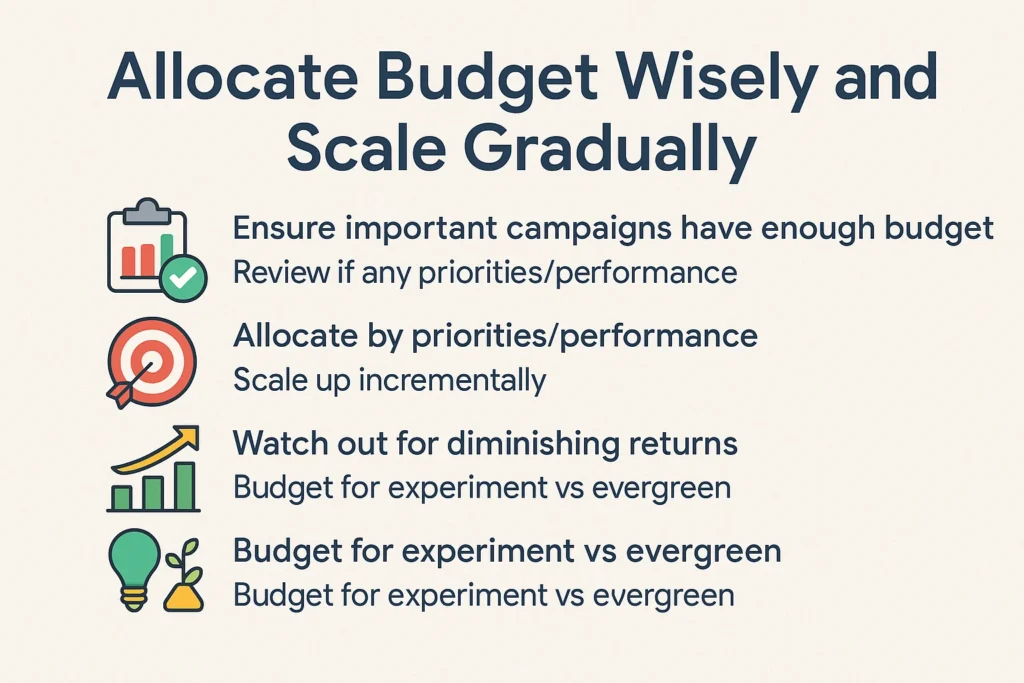
Budget allocation is an often overlooked aspect of Google Shopping management. Especially for a small eCommerce business, you likely have a limited overall budget – deciding how to spread it across campaigns (or products) and when to increase budgets is key.
- Ensure important campaigns have enough budget: Review if any campaign is “Limited by budget” (Google Ads will indicate this). If a campaign that’s driving a good ROI is constantly hitting its daily budget cap, it might be time to invest more in it. You don’t want to leave sales on the table just because of an artificial budget limit. For instance, if your Shopping campaign is generating a 5x ROAS and reaching a maximum of $50/day by noon, consider increasing the daily budget to $60 or $75 and monitor the results. If you can’t increase the budget, then increase the ROAS target.
- Allocate by priorities/performance: If you followed step 6 and segmented campaigns (say by category or brand), allocate your monthly ad budget in proportion to your business priorities. Perhaps 80% of your revenue comes from one category – that campaign likely deserves a larger share of the budget. Or if one campaign targets prospecting/upper-funnel audiences and another is a remarketing or brand campaign, you might budget them differently (the latter might convert higher, so a steady budget there is wise, whereas prospecting might be capped until proven).
- Scale up incrementally: When you find a winning campaign or product group, the instinct is often to pour more money into it. That’s great – but do it gradually to maintain performance. For example, increase your budget by 10-30% and see if ROAS/CPA holds steady. Sudden large budget increases can sometimes confuse automated bidding or expand reach too fast into less profitable traffic. Scaling is a stepwise process.
- Watch out for diminishing returns: As you scale, keep an eye on metrics like CPA and ROAS. You might notice that after a certain point, spending more yields proportionally fewer conversions (the law of diminishing returns). That’s usually when you’re exhausting the most qualified audience and further budget goes to less interested folks. At that stage, consider investing in another channel or campaign type rather than pushing the budget ceiling endlessly.
- Budget for experiment vs evergreen: If possible, reserve a small portion of budget for trying new things (e.g., a new Performance Max campaign, a test of a different bidding strategy, etc.) separate from your “core” campaigns. This way, your main sales engine continues to run reliably while you explore growth opportunities on the side. For example, allocate 10% of your budget for “experimental” campaigns; if they prove successful, you can scale them up and incorporate them into the core.
Finally, remember that consistency is key. If you can’t afford a big budget, it’s often better to run a smaller campaign continuously than to go on/off. Google’s algorithms learn over time; a consistent $30/day campaign may outperform one that swings wildly between $0 and $100. Allocate what you can sustain and adjust as your revenue grows. With careful budgeting, you ensure that every dollar is working its hardest for you.
8. Optimize Product Pages for Conversions (UX, Trust, and Pricing Clarity)

Getting a shopper to click your ad is only half the battle – the next half is on your website. Optimizing your landing pages (product pages) for conversion is crucial to turning clicks into customers. You’d be surprised how often I see clients with great ads but leaky websites. Here’s what to focus on:
- Ensure a high-quality landing page experience: If you have a high click-through rate (CTR) on your ads but low conversion rate on site, that’s a red flag that something on the page is turning people off. Everything from page design to messaging to checkout flow matters. Make sure the product page loads fast, looks professional and matches the ad (the product ad should lead to that exact product, with the same title/price displayed).
- Clear pricing and shipping info: One common reason users bounce is unexpected costs. Be upfront about the price and any shipping fees. If you offer free shipping or a free returns policy, be sure to shout it from the rooftops! Conversely, if you have a shipping fee, it’s best to show a shipping calculator or a note like “Free shipping on orders over $50”. So, users aren’t surprised at checkout. Shoppers like to know the total cost before clicking “Add to cart”. For example, if you offer free delivery on orders over a certain amount, clearly state this on the product page to encourage larger orders.
- Build trust with your audience: Online shoppers are cautious, especially if they are unfamiliar with your store. Your site should immediately signal trustworthiness. Some ways to do this include:
- Display trust badges or security seals (SSL secure checkout icons, payment provider logos like PayPal, etc.).
- Show product reviews or ratings on your product pages if possible. Social proof helps reassure new customers.
- Have a professional, clean design – no awkward layouts or poor-quality images. A modern design builds confidence.
- Prominently display your contact information, including a phone number, business address, and live chat options, if available. Real contact info signals you’re a legitimate business. I feel more secure buying from sites that list their contact information.
- Include an easy-to-find link to your return policy, shipping policy, and privacy policy (usually in the footer). Shoppers do scroll to check these! A generous return policy can encourage a hesitant buyer to make a purchase.
- User Experience (UX) Basics: Ensure your ‘Add to Cart’ button is clear and functions properly. Avoid clutter that distracts from the purchase. Verify that the page is easy to navigate on mobile devices – text should be readable without zoom, buttons should be tappable, and so on. Given that many people research on mobile and might complete the purchase on desktop later, a smooth mobile experience is key to not losing them early in the funnel.
- Offer incentives when appropriate: Adding a small incentive can sometimes boost conversion. This could be a first-time customer discount code, a limited-time sale, or a complimentary gift with a purchase over a certain amount. If you do run promotions, make sure also to use Merchant Center’s promotions so that the annotations show on your Shopping ads (that can increase CTR). However, even on the product page, highlight the deal: for example, “10% off your first order – use code WELCOME10.”
- Avoid aggressive popups: Have you ever visited a site and been immediately bombarded with a newsletter signup popup, followed by a chat popup, and so on? Don’t do that. Obnoxious popups can drive people away. If you use a popup for email capture, time it so it doesn’t appear right when the user lands and make it easy to close.
- A/B test page elements: If you have enough traffic, consider running A/B tests on your product pages. Test things like the layout, the call-to-action text (“Buy Now” vs. “Add to Cart”), showing an urgency message (“Only 2 left in stock!”), But be truthful, different images, etc. Over time, these tweaks can lift your conversion rate. If 3 out of 100 visitors buy now and you increase that to 4 out of 100, that’s a 33% increase in sales without any extra ad spend!
In summary, don’t let a weak product page undermine your ad spend. Make the page as persuasive and user-friendly as possible. Provide all the info a customer might need (sizing charts, specs, FAQs) to feel confident clicking that buy button. The more you instill trust and reduce friction, the more of your hard-won clicks will turn into actual sales.
9. Align with the Customer’s Buying Funnel (Push vs. Pull Intent)

Not all clicks are equal – a big part of marketing is understanding customer intent and where the customer is in their buying journey. Google Shopping and search ads primarily serve pull intent (people actively searching for something). But with the rise of Performance Max and other display formats, you’re also doing some push marketing (showing products to people who aren’t actively searching). It’s essential to align your campaigns and strategies with these differences.
Consider the buying funnel stages: Awareness (the customer is not yet familiar with your product), Consideration (the customer is researching and comparing options), and Decision/Purchase (the customer is ready to make a specific purchase).
- Pull campaigns (high intent): Standard Shopping and the Search-network portion of PMax are great at capturing users in the Consideration or Decision stage – they’re typing in what they want, e.g., “buy Nike Air Zoom size 10”. These users have intent and often convert quickly. Make sure you appear for those queries (with the correct bidding and no negative keywords blocking essential terms). Additionally, for branded queries or highly specific product searches, you may allocate higher bids or create separate campaigns, as discussed in the structure, because these are bottom-of-funnel gold – you want to win those auctions.
- Push campaigns (lower intent or awareness building): Performance Max will also show your products on YouTube, Gmail, Discover, etc., even when people aren’t actively searching. This can help you reach new audiences (awareness) or remind past visitors (retargeting). But you can’t expect the same conversion rate from a cold YouTube impression as from a search ad. Align expectations and measurement: for example, someone who sees a banner for your store might not buy immediately, but they may later search for your brand or product. You’re planting seeds.
- Tailor your approach to intent: For high-intent search traffic, ensure your product data and bids are competitive – these users know what they want, so if your price or reviews are better, you’ll likely get the sale. For lower-intent push placements, focus on eye-catching creative assets (images or videos) and consider including special offers to capture attention. You can also use audience targeting (in PMax’s audience signals or in Display/YouTube campaigns) to focus on demographics or interests aligned with your product, thereby improving the relevance of those push impressions.
- Use remarketing to bridge the funnel: Aligning with the funnel also means following up. If someone visited via a Shopping ad (pull) but didn’t buy, a retargeting campaign (push) via Display or PMax can show them the product again or related products, nudging them toward purchase. These are typically people in the middle of the funnel – they’re aware and considering, just need an extra push (maybe a promo or just a reminder). Setting up retargeting audiences in Google Ads and using them either in a Standard Shopping campaign (as an audience with bid adjustments) or via PMax’s automatic inclusion of retargeting can improve overall conversion volume.
- Don’t measure all performance with one yardstick: If you run both pull and push-oriented campaigns, consider different KPIs or conversion windows. For example, a view-through conversion (someone saw your ad but didn’t click, then later visited your site and bought) is more relevant for push channels. Google PMax provides an “Insights” report, where you can see how video ads are indirectly influencing conversions. Take those into account when judging performance. A new customer may need to see your brand a few times (awareness and consideration) before they search and make a purchase.
For a small e-commerce business with a limited budget, a practical approach is to invest primarily in pull campaigns first (where you know the intent is already there) and allocate a smaller portion to push tactics for growth. As you expand, push marketing can create new demand that eventually feeds your pull campaigns. Always be mindful of the customer’s mindset: meet ready-to-buy customers with the info they need (product, price, trust signals) and meet browsing customers with engaging content and reasons to remember your product. Aligning your campaigns to these intents will make your ad spend more efficient and your messaging more effective.
10. Performance Max Campaign Best Practices for 2024–2025

Performance Max (PMax) campaigns are Google’s newest way to advertise across all networks with a single campaign. They’re powerful, but to get the most out of PMax in 2024–2025, you should follow some best practices that we’ve gleaned from recent experience:
- Feed optimization remains critical: Just because PMax automates many tasks doesn’t mean you can neglect your product feed. Feed quality is the #1 factor in PMax Shopping performance. Don’t ignore the basics we discussed in section 2 – titles, images, correct categories, etc. If you feed garbage to PMax, it will output garbage. A well-optimized feed sets the foundation for successful PMax ads.
- Provide a rich set of creative assets: PMax isn’t just Shopping ads. It will create display ads, YouTube video ads, and more. Google’s machine learning will mix and match text, images, and videos you provide. So, supply as many good assets as you can:
- Write compelling ad copy (headlines, descriptions) that highlights your value propositions, free shipping, huge product range, or whatever makes you stand out.
- Upload high-quality marketing images (lifestyle images of your product in use, or graphic banners). Follow Google’s recommended specs – for example, include at least one square image and one landscape image to cover different placements.
- Add a video if possible. PMax will auto-generate videos from your images if you don’t provide one, but these auto-generated videos are often mediocre. A simple 15-30 second product highlight video or slideshow with music is excellent. Many small merchants use a free video maker. This ensures you’re eligible for YouTube placements with a video that represents your brand well.
- Use Audience Signals smartly: When you set up PMax asset groups, you can add audience signals (like segments of users interested in certain things or your own customer lists, etc.). Audience signals don’t hard restrict who sees your ads (PMax will eventually go broad), but they give the algorithm hints on where to start. Use your first-party data here – for example, create an audience of your past converters, or people who added to cart, and use that as a signal. Also add Google’s in-market or affinity audiences that align with your product (if you sell pet supplies, you might add “Pet lovers” or “Pet supply shoppers”). This can jump-start the campaign by finding likely buyers sooner.
- Beware of cannibalization and brand traffic: PMax will eagerly scoop up conversions wherever it can, including your brand searches. This can make performance look great (“Wow, this PMax campaign has a 800% ROAS!”) but check if it’s mostly because when people search your brand, PMax is serving them a branded ad that they would have clicked anyway. To control this, you can use the account-level negative keyword list to exclude your brand name keywords from PMax, thereby letting a Search and standard shopping campaigns handle those, or at least be aware of the dynamic. Similarly, PMax might overlap with standard campaigns – Google uses something called campaign priority and ad rank to decide which campaign serves. Generally, if you still run Standard Shopping alongside PMax, the one with higher ad rank will show; often that ends up being PMax due to its expansive reach and use of signals.
- Budget and ROAS settings: PMax uses automated bidding (Max Conversion or Max Conversion Value). Google recommends a certain minimum budget to give the algorithm enough to work with – often at least $50/day or more, but do what your budget allows. If you set a target ROAS, be realistic; it is too high, and the campaign may stall. It’s sometimes wise to run PMax for a couple of weeks on “Maximize conversion value” without a tROAS to let it learn, then set a tROAS target slightly below your account’s average to nudge it higher. For example, if you’ve been getting 300% ROAS, set 280% as target first, not 500%.
- Give it time, but monitor: PMax campaigns typically have a learning period (Google suggests 2-4 weeks). During this time, avoid making frequent changes. That said, keep an eye on the Insights tab in the campaign – it will show you which search themes, audience segments, and creatives are driving results (and soon search terms by the end of 2025). If, after a month, you notice certain asset groups performing poorly (or certain products not selling at all), you may consider restructuring (e.g., removing those products from a separate PMax or adjusting your feeds).
- Feed-only vs Full PMax: If you don’t provide any additional assets (images, text, etc.), a PMax campaign essentially operates like the old Smart Shopping – it will just run Shopping and display ads. Some advertisers actually do this intentionally if they want a simpler setup. However, you lose the ability to show on YouTube, etc. If you try feed-only, just know you’re not using the full PMax capability. I’d generally recommend utilizing at least some assets to let Google find more customers across channels.
- Seasonality adjustments and promotions: In 2024 Google improved PMax’s handling of promotions and seasonal spikes. Make sure to use the Merchant Center promotions where relevant (so your Shopping ads highlight deals). PMax will automatically push those out. Suppose you expect a significant change (such as a Black Friday spike). In that case, you can use seasonality adjustments in Google Ads to inform the algorithm of an anticipated increase in conversion rates. This is a bit advanced, but helpful for short events, so the bidding AI doesn’t underspend, thinking performance has suddenly improved (or vice versa).
- Keep an eye on new features: Google is continuously updating PMax (for example, asset group-level reporting, new customer acquisition goals, etc.). Stay informed through Google’s release notes or our blog or videos. For instance, you can now set a goal to optimize for new customers in PMax (giving a higher value to new-customer conversions). Features like these can be beneficial if customer acquisition is a priority over pure return on ad spend (ROAS).
In essence, treat Performance Max as a powerful yet somewhat “black box” tool – you input the best data (feed, assets, signals) and guide it with sensible goals, and then let it find customers across Search, Display, YouTube, Gmail, and other channels. By following these best practices, you ensure that the algorithm is working with high-quality data and maintain strategic control over aspects such as audiences and budget. The result can be a campaign that delivers excellent results in 2024 and beyond, even as consumer behaviors and Google’s systems continue to evolve.
11. Manage Stock and Product Availability

Our final checklist item is a simple yet vital one for any retail business: ensuring product availability. I’ve seen businesses waste a lot of ad spend by not managing their stock in sync with their ads.
- Keep your feed updated with stock changes: As mentioned earlier, update your Merchant Center feed at least daily (or instantly via the Content API, if possible), to reflect current inventory. If an item goes out of stock, you want Google to be notified as soon as possible. Google will stop showing an out-of-stock item in Shopping results, which is beneficial – you don’t want to pay for clicks that can’t be fulfilled. If you don’t update, you might continue paying for clicks on a product you can’t sell, and you’ll also annoy potential customers.
- Use the correct availability status: In your feed, use availability attributes properly – “in stock”, “out of stock”, “preorder”, etc. Avoid attempting to cheat by marking items as in stock when they’re not; this will result in a poor user experience and likely violate Google’s policies. If an item is on backorder but you still want to take orders, use the “backorder” status with an availability_date so customers see a later delivery date.
- Pause or lower bids on low-stock items: If you’re running Standard Shopping and you know an item is very low in stock (only a couple left) or frequently goes out of stock, you might proactively reduce its bid or even pause it in Google Ads. Why? Suppose it sells out at 10am but your feed doesn’t update until midnight. In that case, you’d have potentially 14 hours of advertising an unavailable product. Lowering the emphasis on near-OOS products can mitigate that risk. (Some advanced merchants even use scripts to do this dynamically.)
- Avoid advertising discontinued products: If a product is permanently discontinued or won’t be restocked for an extended period, remove it from the feed entirely. Focus your ads on items that you can actually sell. Nothing is worse than gaining a potential customer’s click, only for them to land on a “Sorry, product not available” page – almost certainly they’ll drop off and may not return.
- Monitor the “Item Status” in Merchant Center: The Merchant Center interface (and the mobile app) allows you to view the number of active, disapproved, or expiring products. Keep an eye especially on the “expiring” count – product data expires after 30 days if not refreshed. If you see items expiring, it means your feed isn’t updating frequently enough.
- Learn from stock-related performance: Take note if certain products often run out of stock due to high demand driven by ads – that might be a sign to order more inventory or to raise prices a bit (economics 101!). Conversely, if some items never move, you might stop advertising them and focus budget on better sellers.
- Customer perception matters: Consistently advertising items that are out of stock can harm your brand’s reputation. From personal experience, I remember searching for various gadgets and repeatedly seeing one retailer’s Shopping ads, but every time I clicked, the item was unavailable. It only took a couple of times before I started completely ignoring that retailer’s ads. Don’t be that retailer. Keeping your availability accurate not only saves ad money, but it preserves the goodwill of potential customers who might give you another chance if their first experience isn’t a dead end.
In short, make inventory management a part of your marketing strategy. Your ads and your stock levels should be in harmony at all times. This ensures you’re spending money only on ads that have a chance to convert, and you’re providing a good user experience by showing shoppers only what they can actually buy.
Conclusion & Next Steps
That was a long checklist – thanks for sticking with me through all 11 points! By now, you’ve seen that success in Google Shopping campaigns comes from doing a lot of little (and not-so-little) things right.
It may seem overwhelming but think of it as a checklist to work through step by step. Even implementing a few of these optimizations can dramatically improve your Google Shopping results. For example, simply cleaning up your feed and negatives can boost ROAS by eliminating irrelevant clicks and making your products more appealing to relevant searches.
Call to Action: My challenge to you is to pick three items from this list and tackle them this month. Maybe audit your conversion tracking, resolve one policy issue, and rewrite five product titles – any progress is good progress. Over time, hit all the points on the checklist.
If you need any help along the way, or want an expert eye on your Google Shopping setup, feel free to reach out. As I mentioned, at FeedArmy, we live and breathe this stuff, and we’re here to support fellow eCommerce entrepreneurs. Good luck with your campaigns, and happy selling!