


A simple guide explaining all the ways to remove or exclude products from Google Shopping using Google Merchant Center or Google Ads.

Why Would I Want To Remove Products?
- Low performing products
- Low conversions
- Products that are out of stock
- Products you don’t want to sell for other reasons
Do Note
Google automatically stops advertising products that are out of stock within 24 hours.
Removing a product for an extended period will negatively affect your historical ranking.
Try Improving Before Removing!
If you have a product with low conversions but high CTR, then maybe it’s not the problem of the product but an issue on the landing page or checkout.
If your product has high impressions but no clicks, maybe try to improve the following:
- Better image
- Better Text, Description
- Competitive pricing
- Try adding Google Promotions
If all of the above have failed and you are not receiving the desired outcome, excluding the product is a good idea.
Option 1) Visibility Preferences
You can hide products from showing in Google or ads only.
Go to Products > All Products > Click on a product > check the box on the right-hand side.


Option 2) Delete a Product
You can delete a product in Google Merchant Center; however, only in cases when you have manually added the product.
To delete a product, go to Products > All Products > click on a product > click on the Delete button at the bottom on the right-hand side.

Option 3) Archive a Product
You can archive a product directly on the product details page as well. This will work in all scenarios, meaning manually added products, data feed imported products and even Google’s automatically added products.
To archive a product, go to Products > All Products > click on a product > click on the Archive button at the bottom on the right-hand side.

Option 4) Using Attribute Rules
You can exclude products using the excluded destination attribute using feed rules or a supplement feed.
Using feed rules by going to Google Merchant Center > Products > Feeds > click on your feed > feed rules

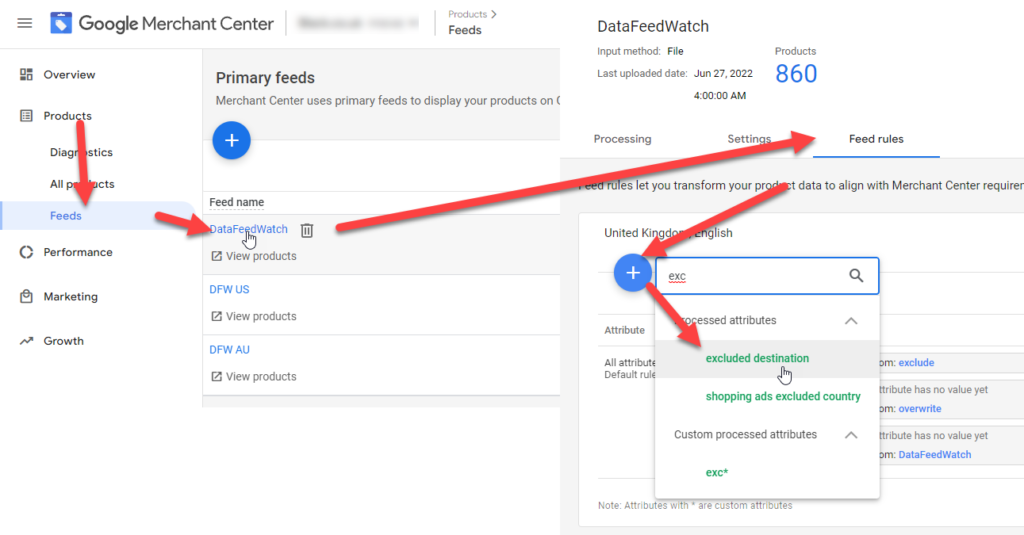
Click on the blue plus icon and select excluded destination.
Within data sources select the id equals {enter your id} and set it to shopping ads.

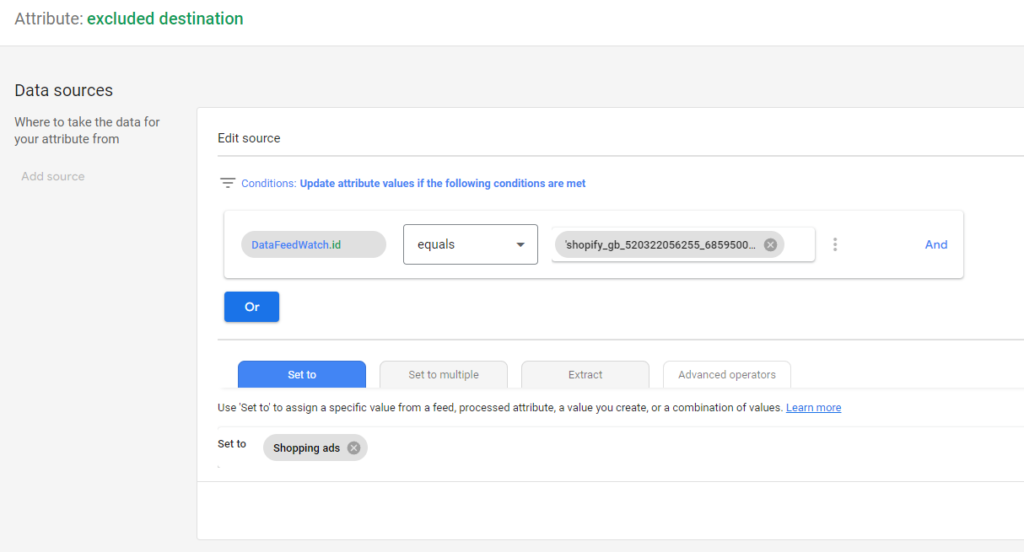
Learn more: https://support.google.com/merchants/answer/14994083
Option 5) Supplemental Feed
You can exclude products using a supplemental feed by adding the id column and the excluded destination attribute. As with the attribute rules, you then add, for example, shopping_ads.
Go to Products > Feeds > and click on add supplement feed. Then enter a name and select Google Sheet from a new template.
| id | title | excluded_destination |
| test1234 | My Test Product | shopping_ads,Free_listings |
Learn more: https://support.google.com/merchants/answer/6324486
You can even use the attribute pause, however this is only in cases you want to pause the product for no more than 14 days.
| id | title | pause | pause |
| test1234 | My Test Product | ads | all |
Learn more: https://support.google.com/merchants/answer/11909930
Option 6) Exclude In Google Ads By Item ID
In Standard Shopping Campaigns
You can exclude a product by item ID inside your Google Ads Product Listing.
Click on your Google Ads Shopping Campaign


Click on your ad group

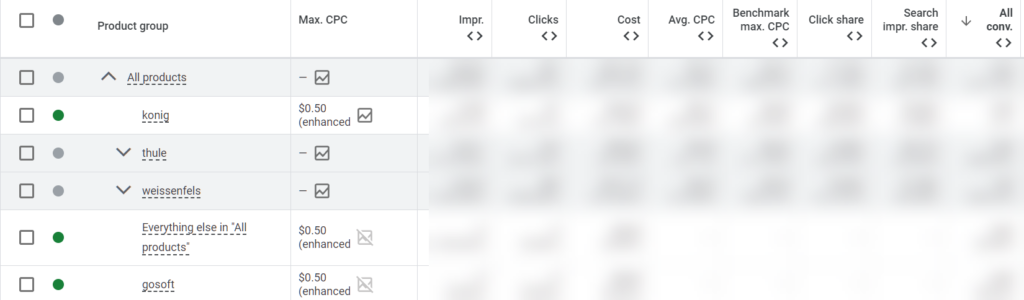
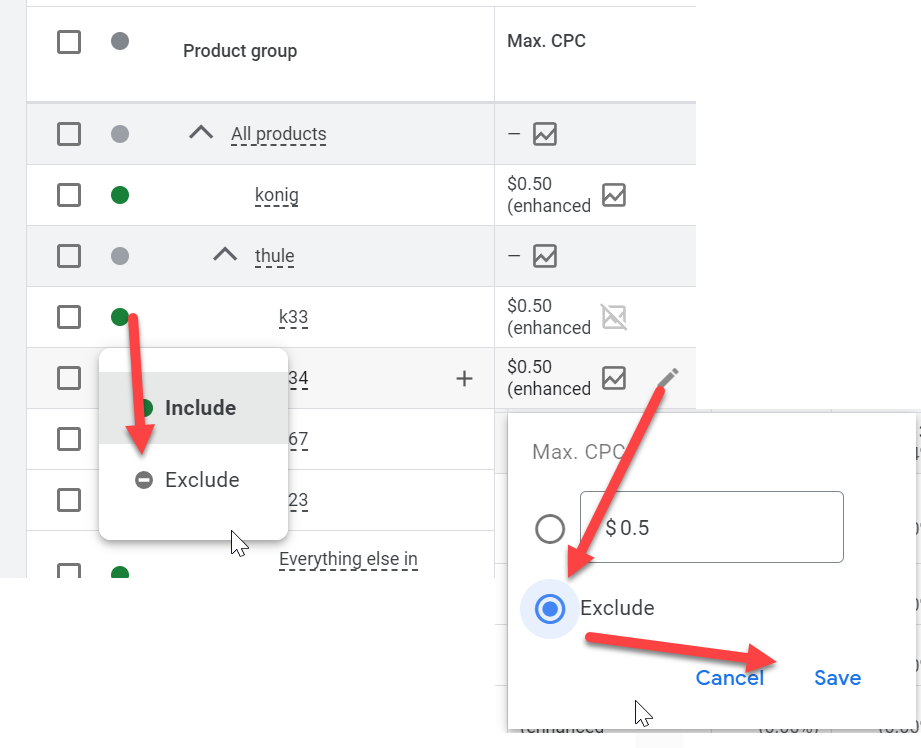
Click on subdivisions (arrow down) until you are at the item ID level. If you have not subdivided your products, have a read on how to implement subdivisions for your Google shopping campaign.

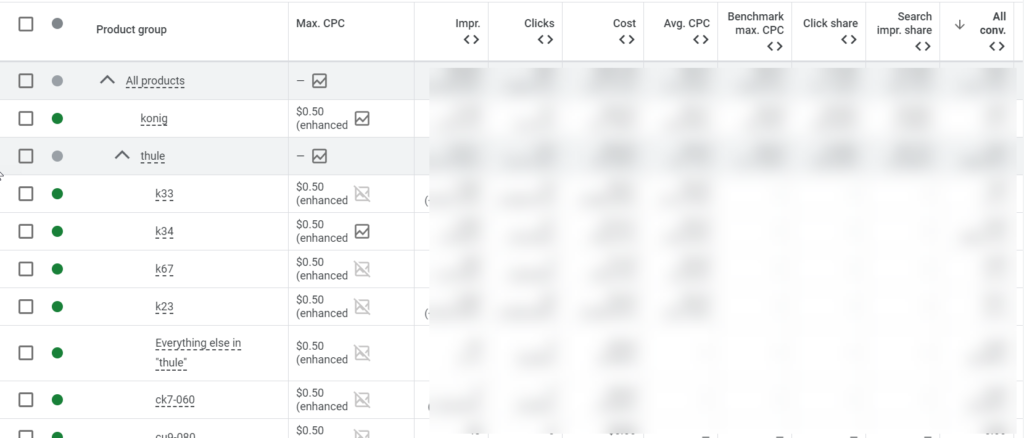
You can now click on the Max CPC column cell to change the bid option. Here you can choose to select exclude and then click on save.
Or you can click on the radio button and exclude it that way.

In Performance Max Campaigns
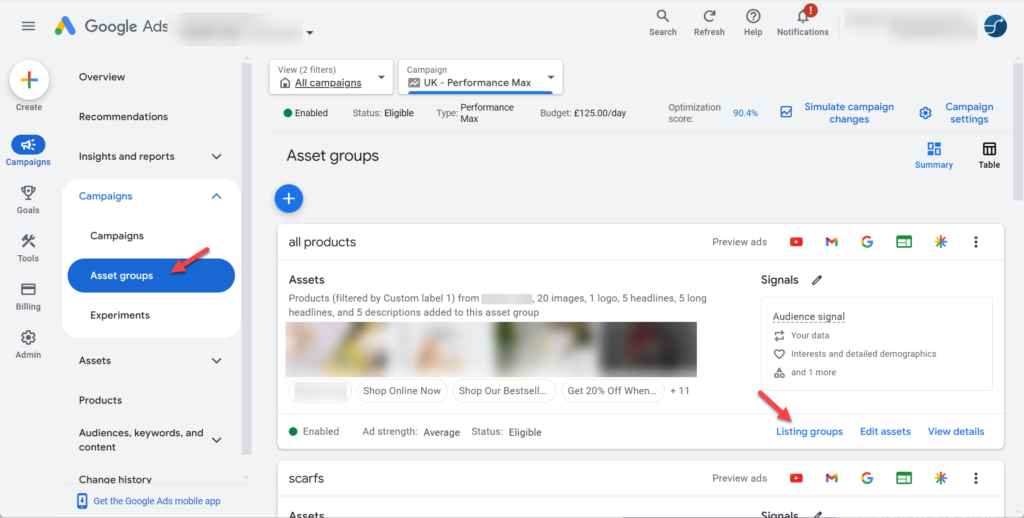
In Google Ads click on your Performance Max Campaign > Asset groups > Listings Groups

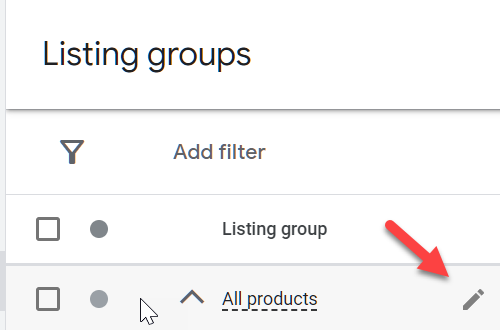
Hover over All products and click on the edit icon

Now you can choose Item ID

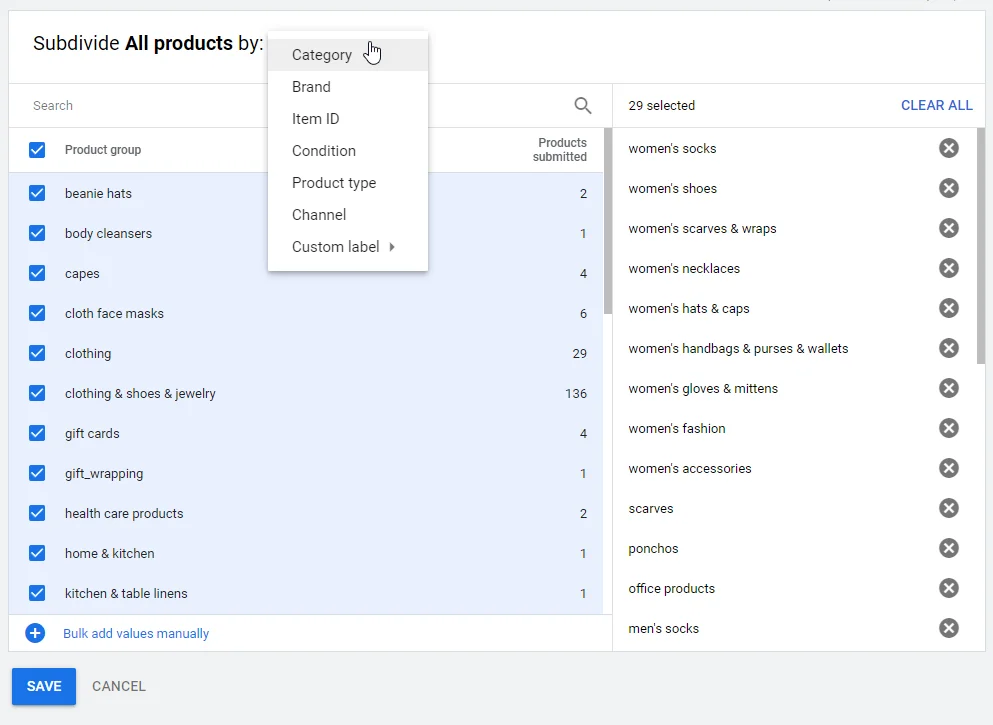
You can now check all items you want to include, and everything else will be excluded.

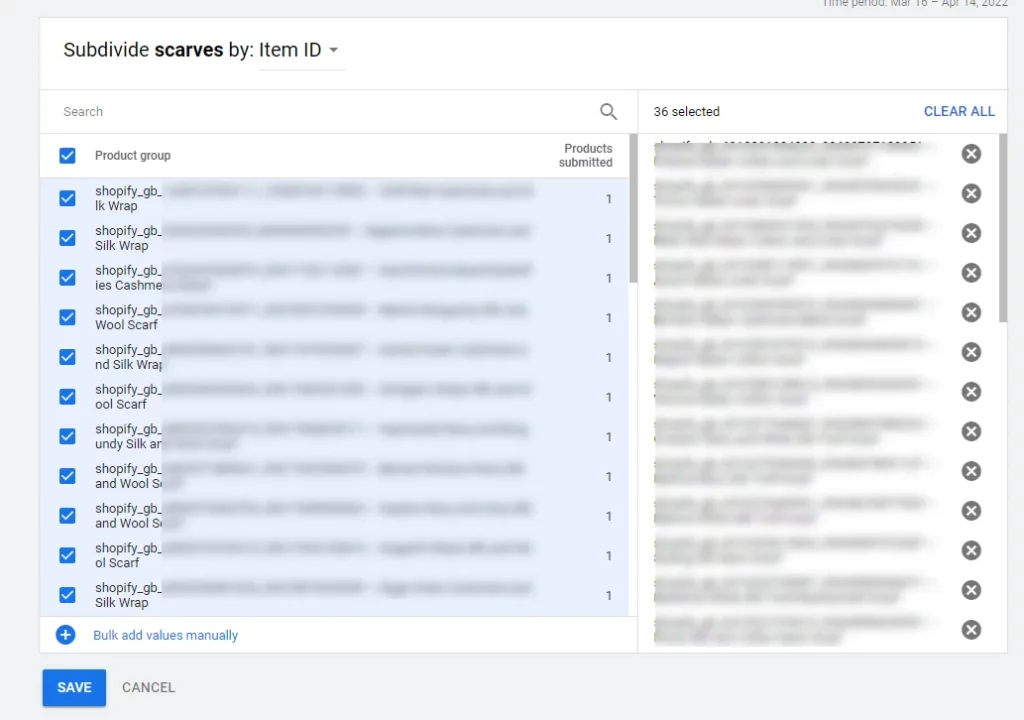
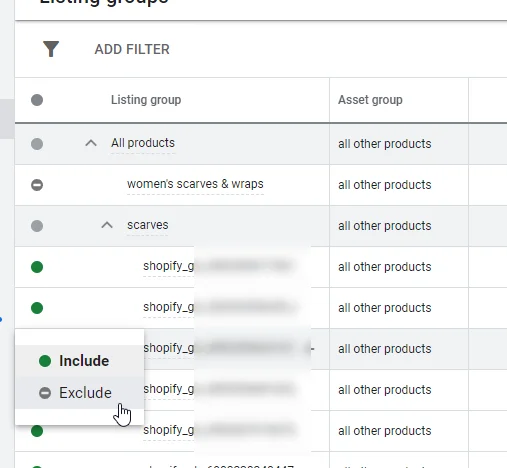
And you can also exclude individual products after this step by changing the status from enabled to excluded.

You will also need to exclude the product URLs to avoid showing the product in text listings. To do this go to your performance max campaign > settings > Asset optimization > click on Manage Asset Optimization > exclude under Final URL expension and click on the edit icon.


Option 7) Delete The Product From Your Data Feed
Please remember that the historic ranking could be removed by deleting the product from the data feed. Ensure you do not reuse the Product ID for products other than the same product when the product is deleted.
Pro Tip
You can set up an advanced exclude rule using Google Ad scripts, and the data feed processes the spreadsheet to automatically exclude products based on rules. For example, exclude based on low-performing products.
Tips Why Not To Remove Products
Let’s understand why excluding or deleting a product in Google Ads, Google Merchant Center, or the data feed has more negatives than positives.
Excluding from Google Ads
Excluding products from Google Ads based on availability has two drawbacks.
- You need to control your data manually, this increases the chances of you forgetting to include the product when it is back in stock
- Excluding a product and then including it again has a delay of a couple of hours, while simply doing it the correct way will be much faster and does not result in human errors
Excluding in Google Merchant Center
Deleting a product in Google Merchant also has two drawbacks, however slightly different from Google Ads
- Deleting a product from Google Merchant Center will not delete the product forever, it will automatically be back when you fetch a new copy or when the data feed is automatically fetched
Excluding in the data feed
Removing a product from the data feed also has negatives, namely two drawbacks
- When you remove the product from the data feed, you need to remember to add it again
- Deleting a product and placing it back in the data feed, removes all manually edited data.