


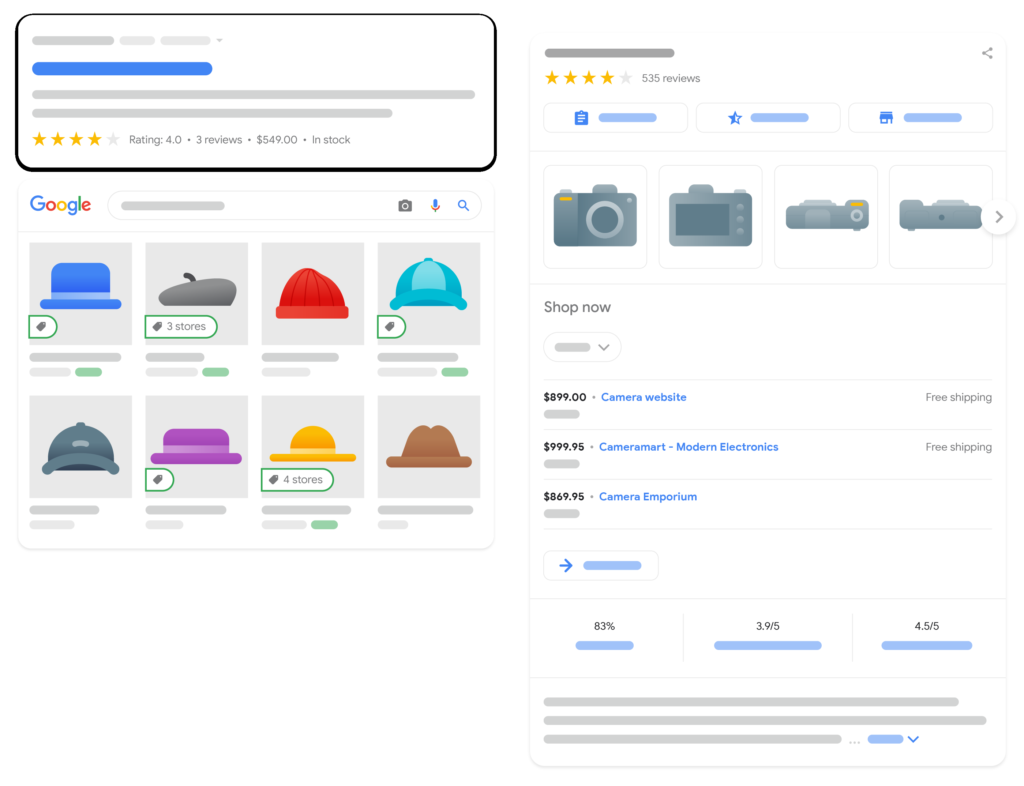
If you have received errors or warnings regarding missing or invalid data for prices, condition, availability, etc… Then the code below will solve this issue. You will need to both updates Opengraph and JSON-LD. Copy the JSON-LD code and paste it inside your product.liquid file using the latest JSON-LD technology. And replace two lines in your social-meta-tag file. This code supports variants by keeping the first selected product as the first iteration. If you have multiple variants such as colors and the second color is preselected based on the URL. This is done to follow the Google Merchant Center guidelines and while keeping SEO integrity.
This tutorial no longer supports the old Microdata technology as JSON-LD is a lot faster to read for Google Bots.


Requirements
- Google Merchant Center > Products > All Products
- Access to Shopify > Theme > product.liquid or
- Add it to your theme.liquid file body tag
Important:
It is required you remove all your old structured data coding, to avoid conflicts. If you do not know how to do this, you can ask for my help.
From the code example below, edit the value between code settings start and end. Do not change anything else or you might break the functionality. I have highlighted below what you can edit.
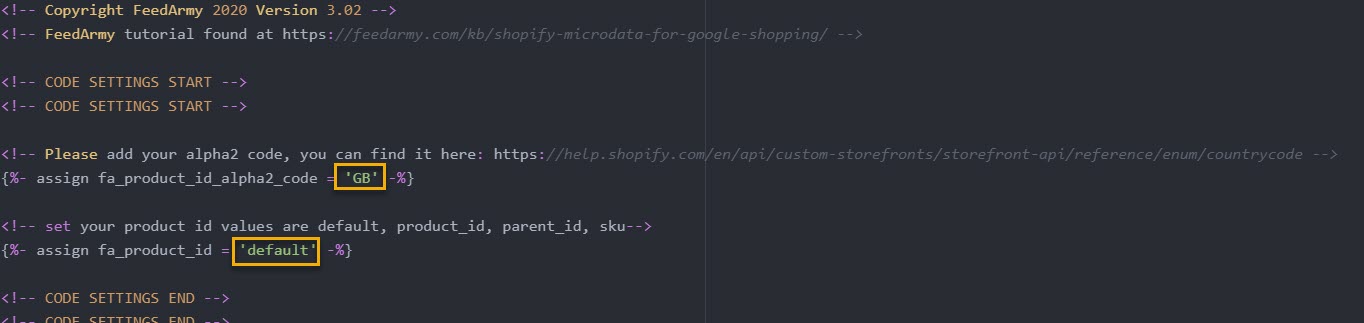
- By default the code is set up for the US, if you targeting a different country, change the value of fa_product_id_alpha2_code to your target country alpha2. For example, the United Kingdom is GB. You can find the full list here: https://help.shopify.com/en/api/custom-storefronts/storefront-api/reference/enum/countrycode
- The following step requires you to check the product id in Google Merchant Center > Products > List. And see what ID you are using.
- If it looks like shopify_US_81191654332_1055121650148, then keep fa_product_id set to default
- If it looks like 1055121650148 then set the value fa_product_id to product_id
- If it looks like the main id 81191654332 then set the value fa_product_id to parent_id
- If it looks like a sku then set the value fa_product_id to sku
- For RETURNS (fa_return_days), add how many days you offer returns. In the below code, I have added 28, change this to the max days you offer returns.
- You can disable this by setting fa_returns to false.
- If you already have returns setup in Google Merchant Center, disable the structured data setup by setting fa_returns to false.
- The returns policy is set to free returns via post.
- For SHIPPING, set your shipping currency, which threshold your free shipping is and what your shipping fee is if the merchant does not reach the minimum item cost.
- You can disable this by setting fa_shipping false.
- If you already have shipping setup in Google Merchant Center, disable the structured data setup by setting fa_shipping to false.
- Add the min and max handling and shipping time.
You can download the code here: https://merchantcodex.com/advanced-structured-data-schema-markup-for-shopify/
Once the new coding has been added, it will take Google Merchant Center several days before the warnings inside your diagnostic panel disappear. The reason it takes so long is that Google does not check every page every day.Here is a step by step guide on how to paste the code in your products.liquid file.
Installing The Code
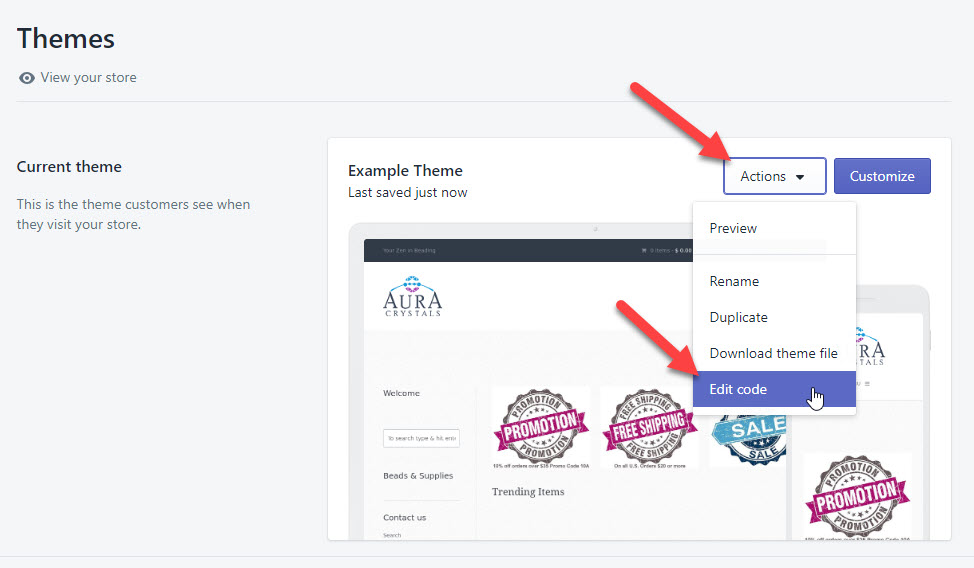
- Log in to your Shopify Admin Panel
- Go to Online Store > Themes
- In the top right corner, click on actions. A menu will appear, and click on Edit Code
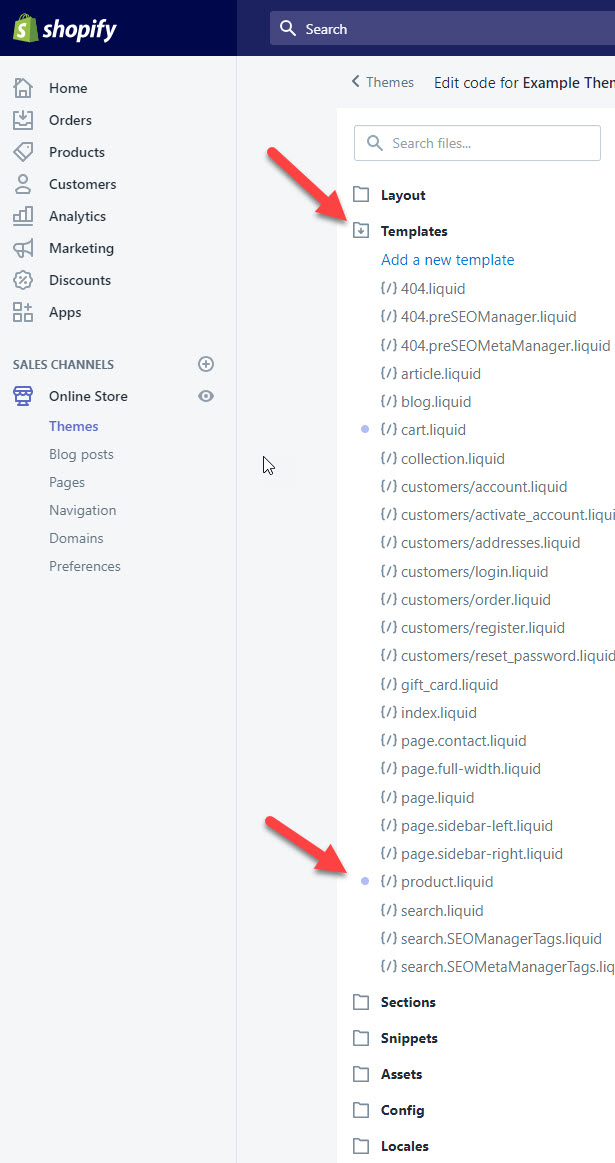
- Click on Templates > product.liquid
- If you are using Dawn 2.0 or you don’t have product.liquid, install the code on Layout > theme.liquid, inside the <body> tag.
- The recommended place to paste the code is at the top. After installing the code, check that you did not break anything by checking the preview results of your product landing page.
- Remove the original Shopify review structured data, if you have added the widget in sections/product-template.liquid. This needs to be removed to ensure there are no warnings or errors. Search and replace the below code.
Search for:
<div id="shopify-product-reviews" data-id="{{product.id}}">{{ product.metafields.spr.reviews }}</div>Replace with:
<div id="shopify-product-reviews" data-id="{{product.id}}"></div>- Checking the results
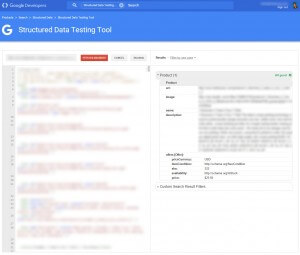
Verify that you have done it correctly by checking the page with Google’s Structured Data Testing Tool
And also, check Facebook’s data testing tool.
You will see 1 warning
- The review field is recommended. Please provide a value if available.
- This can’t be added and should be added by the review app you are using.
You may also see other warnings. If you have not added all the values in Shopify, the most common missing values are Brand and GTIN. If you want these to show, make sure that you add Vendor and Barcodes in Shopify.
The aggregatedReviews in this script only extract data for the default Shopify review system, if you have other review systems such as yotpo, stamped, judgeme, loox, etc… please reach out.

If you want to succeed in your advertising efforts, why not hire a Google Shopping Specialist!
Fix Opengraph
A newly found issue for a few months now is related to Opengraph. It seems that sometimes Google looks at the Opengraph Price Amount. The issue here is that in most cases it will show the first variant that you created in Shopify. Instead of the selected variant. I did not mention this prior to 30th of April 2021, however Optily a merchant confirmed the existence of this issue and I have now decided to update this article to fix this issue too.
Step 1) Edit Liquid File
Go to:
- Open Your Shopify Admin
- Click from the left hand menu on Online Store
- Select Themes
- From the file folder navigate to the folder Snippets
- Open social-meta-tags.liquid

Step 2) Replace Coding
Near the bottom of the file you will see two lines wrapped inside an if statement that checks if the page is equal to product.
{% if template.name == 'product' %}
  <meta property="og:price:amount" content="{{ product.price | money_without_currency | strip_html }}">
  <meta property="og:price:currency" content="{{ shop.currency }}">
{% endif %}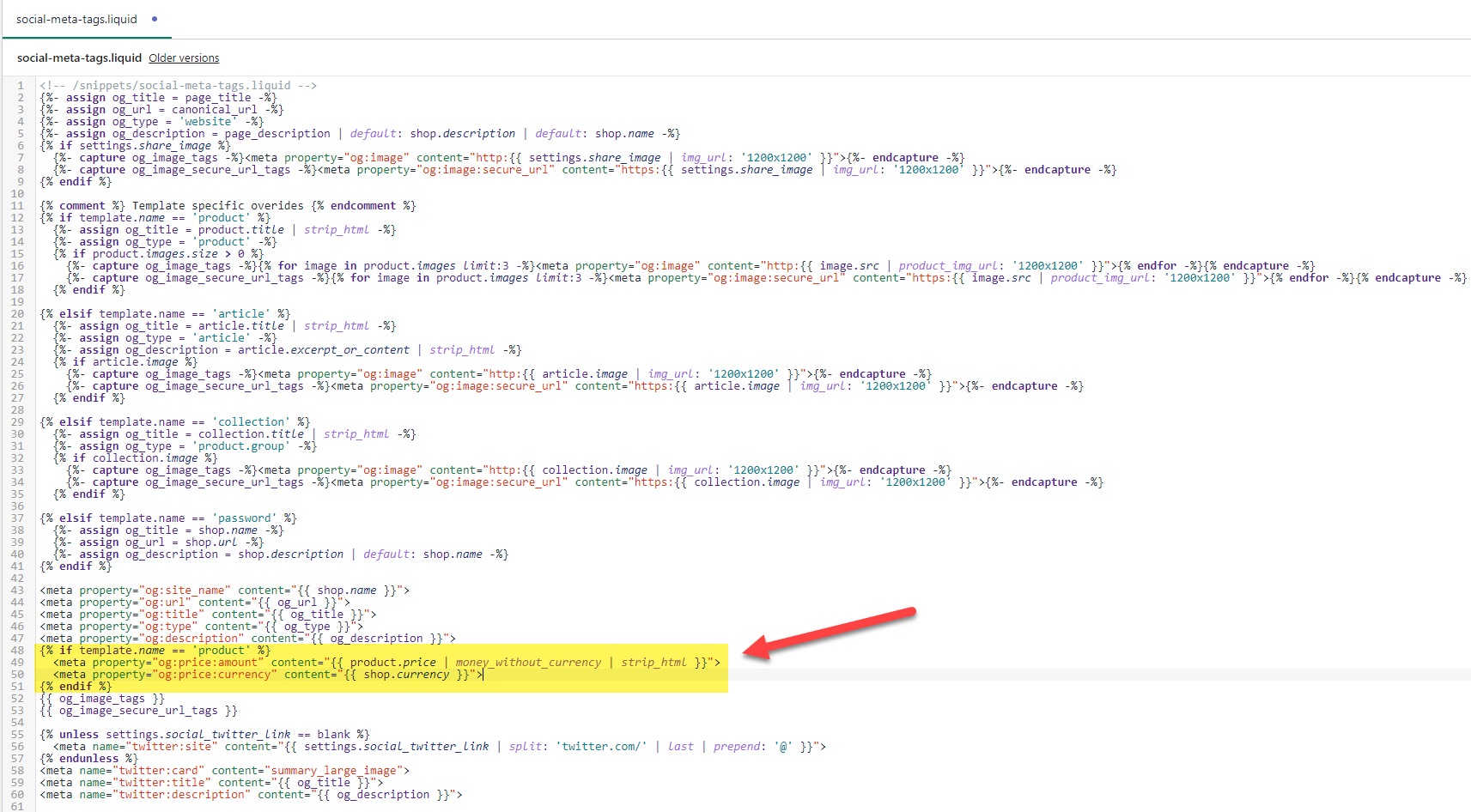
Replace the above code with the below code.
{% if template.name == 'product' %}
	{%- assign fa_current_variant = product.selected_or_first_available_variant -%}
	{%- if cart.currency.iso_code == 'GBP' or cart.currency.iso_code == 'USD' or cart.currency.iso_code == 'JPY' or cart.currency.iso_code == 'AUD' or cart.currency.iso_code == 'AED' or cart.currency.iso_code == 'CAD' or cart.currency.iso_code == 'BWP' or cart.currency.iso_code == 'BND' or cart.currency.iso_code == 'DOP' or cart.currency.iso_code == 'GTQ' or cart.currency.iso_code == 'HKD' or cart.currency.iso_code == 'INR' or cart.currency.iso_code == 'ILS' or cart.currency.iso_code == 'YEN' or cart.currency.iso_code == 'KES' or cart.currency.iso_code == 'KOR' or cart.currency.iso_code == 'LBP' or cart.currency.iso_code == 'MYR' or cart.currency.iso_code == 'MXN' or cart.currency.iso_code == 'NPR' or cart.currency.iso_code == 'NZD' or cart.currency.iso_code == 'NIO' or cart.currency.iso_code == 'NGN' or cart.currency.iso_code == 'PKR' or cart.currency.iso_code == 'CNY' or cart.currency.iso_code == 'PHP' or cart.currency.iso_code == 'SGD' or cart.currency.iso_code == 'LKR' or cart.currency.iso_code == 'CHF' or cart.currency.iso_code == 'TWD' or cart.currency.iso_code == 'TSH' or cart.currency.iso_code == 'THB' or cart.currency.iso_code == 'UGX' or cart.currency.iso_code == 'KWD' or cart.currency.iso_code == 'CLP' or cart.currency.iso_code == 'BHD' -%}
    {%- assign fa_product_price = fa_current_variant.price | money_without_currency | remove:',' -%}
    {%- else -%}
    {%- assign fa_product_price = fa_current_variant.price | money_without_currency | remove:'.' | replace: ',', '.' -%}
    {%- endif -%}
    <meta property="og:price:amount" content="{{ fa_product_price }}">
    <meta property="og:price:currency" content="{{ cart.currency.iso_code }}">
    <meta property="og:availability" content="{% if fa_current_variant.available %}instock{% else %}outofstock{% endif %}">
{% endif %}
It should look like the image below.

For this to work, you do need to install my structured data at the top of the page.
Change Log
- 23 January 2025 – V4.05 : Updated the avoid code from breaking when double quotes are added in variant options
- V3.22 – 13 December 2023: Fixed a spelling error
- 29 November 2023: Updated OpenGraph to include availability
- V3.21 – 13 November 2023: Added hasMerchantReturnPolicy and shippingDetails
- V3.18 – 15 November 2022: Added GTIN empty check
- V3.15 – 19 October 2022: Removed individual GTIN attributes (gtin12,gtin13,gtin14) and replaced it with gtin for all values
- V3.14 – 07 October 2022: Changed image URL from Grande to 1500×1500 pixels
- V3.13 – 01 October 2022: Added Bahrain currency detection
- V3.12 – 12 June 2022: Removed GTIN validation due to scenarios where numeric values are provided as strings
- V3.11 – 14 April 2022: Added extra GTIN validation
- V3.10 – 15 February 2022: Added @id value
- V3.09 – 01 December 2021: Added AED currency detection
- V3.08 – 09 October 2021: Added Canadian currency detection
- V3.07 – 04 October 2021: Updated Brand attribute
- 13 September 2021: Updated opengraph code
- V3.06 – 25 August 2021: Updated SKU attribute to escape special characters
- V3.05 – 19 August 2021: Updated currency detection to include Chilean Peso
- V3.04 – 17 July 2021: Updated list of dot delimiter used in countries