


Running a small eCommerce business means juggling many tasks – and pricing your products correctly is one of the toughest. What if you had a free tool that tells you when a slight discount could dramatically increase your sales? That’s precisely what Google Merchant Center’s Sale Price Suggestions feature offers. In this article, we’ll explain this feature, how to access it, and how to use those suggestions to improve product visibility and conversions. We’ll also share practical tips and examples so you can confidently optimize your pricing and boost your performance without any third-party tools. Let’s dive in!

What Are Google’s Sale Price Suggestions?


Google Merchant Center’s Sale Price Suggestions is a new built-in feature that analyzes your product’s recent performance and market data, and then recommends an optimal sale price to help you attract more customers. In other words, Google is crunching the numbers to suggest how a temporary price drop might impact your ads and sales. This feature uses advanced simulations based on your past week of ad performance (and industry trends) to identify how price-sensitive shoppers are for each product. It then suggests a sale price – a discounted price – that could improve your results (though of course, no outcome is guaranteed).
Key points about how Sale Price Suggestions work:
- Data-Driven Recommendations: Google runs simulations on the last seven days of your product’s performance data, combined with industry data from similar businesses. This means the suggestions aren’t random—they’re rooted in real ad impressions, clicks, and conversion trends.
- Price Sensitivity Analysis: The system evaluates how responsive customers have been to your pricing. If your price is a bit high for the market, Google will notice shoppers’ behavior and factor that in.
- Optimized Sale Price: Using all this data, Merchant Center suggests a new price (a sale price) that could maximize your visibility and sales results. Essentially, it’s hinting “try selling at $X – we think you’ll perform better.”
This feature is free and part of Google Merchant Center, so you don’t need expensive pricing software to benefit from it. Consider it as Google acting as a pricing coach for your Shopping ads!
Where to Find Sale Price Suggestions in Google Merchant Center


Finding these suggestions is easy, especially using the latest Merchant Center Next interface. Google has organized a lot of useful information under a new Analytics section in Merchant Center, which includes a Pricing tab. Here’s how you can access your sale price suggestions data:
- Log in to Google Merchant Center. Use the account that has your product feed and Shopping ads.
- Navigate to the Analytics section. In Merchant Center Next (the updated interface), look for “Analytics” in the left-hand menu. Click on “Products” and then choose “Pricing.” This Pricing tab shows insights about your product prices.
- Look for Sale Price Suggestions. In the Pricing section, Google compares your prices to others and flags opportunities. Sale Price Suggestions may appear as a dedicated card or a column in a report. For example, Merchant Center’s Pricing analytics shows if your items are priced higher or lower than competitors, but it “also provides sale price suggestions designed to make you more competitive.“ In some cases, you might need to click “View more details” or scroll to see a list of products with suggested sale prices.


If you don’t see the suggestions immediately, remember that small accounts or new products might not immediately have suggestions. However, for most active products, you should find a list of items where Google shows a recommended sale price next to your current price.
You can also view the suggested sales price by going to Products > All Products > Click on the sale price suggestions sub tab.


Tip: The suggestions update regularly (weekly, based on the last 7 days of data). Make it a habit to check this section periodically. It’s like checking your “pricing inbox” for free advice from Google on how to boost your sales.
How to Interpret Google’s Sale Price Suggestions

When you see a sale price suggestion for a product, what should you do with it? Here’s how to read and act on the information:
- Suggested Sale Price: This is the price point that Google recommends you sell the item for (during a sale). It’s usually lower than your current price. Google arrived at this number by analyzing your recent ad performance and comparing your price to similar sellers in the market. Essentially, Google is saying, “We think $XYZ is a sweet spot that could attract more buyers while still being profitable for you.”
- Predicted Impact: Alongside the suggested price, you might see some predicted performance changes. Google’s models estimate how specific metrics could change if you apply the suggested price. For example, it may indicate a percentage increase in clicks, or conversions you might gain by dropping the price to the suggested amount. These are projections, not promises – but they give you an idea of the potential upside. If you see something like “+20% impressions” predicted, that means Google expects your ad could show up a lot more often if you use the sale price.
- Context and Rationale: Understand why the suggestion is made. Google’s system considers factors like how many other sellers offer the same item, how much demand there is for it, and even an estimated profit margin range for businesses like yours. If your current price is significantly higher than others or if lowering the price slightly could tap into a much more significant customer base, Google will flag that. On the other hand, if you’re already very competitive or there’s little to gain from a sale, you might not get a suggestion for that product.
Importantly, remember that these suggestions are advisory. Google provides them to help you make data-driven decisions, but you should also factor in your business realities:
- Check Your Margins: Before you act on a suggestion, ensure the suggested price is still profitable. Google’s goal is to maximize gross profit, not just revenue, so suggestions should still leave you with a margin. However, you know your costs best – double-check that you can afford to sell at that price, even if it’s temporary.
- Sale vs. Permanent Price Drop: The feature concerns sale pricing. It’s usually best to treat the suggested price as a temporary promotion (a sale) rather than permanently slashing your base price. This creates urgency and a sense of deal for customers, and you can always return to your original price later.
- Predictions vs. Reality: Google notes that these predictions and suggestions don’t guarantee future performance. Use them as a guide. They’re based on recent data—if the market changes or if competitors react, results can differ. That said, Google has a lot of data at its disposal, so the suggestions are definitely worth considering seriously.
Applying the Suggested Sale Price to Your Products

Once you decide a Google-suggested sale price is worth a try, it’s time to put it into action. Here’s how you can apply the change:
- Update Your Product Feed or Website Price: You have two main options to change a price for a sale. One is to change the price on your website (which will flow into Merchant Center if your feed updates from your site or e-commerce platform). The other, more robust option is to use the sale price feature in Merchant Center’s product feed. Google allows you to submit a sale_price for an item in addition to the regular price. Using the sale price attribute, you can tell Google “this item is normally $100, but now it’s on sale for $90.” This is precisely how you would implement Google’s suggestion of a lower price for a sale period.
- Set a Sale Duration (Optional but Recommended): If you’re using the sale price attribute, you can also specify a sale start and end date. It’s often a good idea to run the suggested price as a time-limited sale, say for a week or two. This creates urgency for shoppers and also lets you evaluate results over that period. After the sale, the price goes back up automatically (if you set an end date) or you can manually raise it back. This controlled approach is safer for a small business than permanently lowering the price.
- Ensure Your Sale Price Qualifies for the Sale Badge: Google has some rules for showing a strikethrough price and a “sale” tag on your Shopping ads. Typically, the sale price must be lower than the base price (obviously), the discount should be at least a certain percentage (for example, more than 5% off), and the product should have been available at the original price recently (so it’s a genuine sale) and has had a higher price for at least 60 days. If you meet these conditions, Google will display the original price alongside the new sale price in the ad. This creates a visible “deal” for customers. If implemented correctly, the product listing will show both prices – the original price with a strikethrough, and the sale price as the current price. Shoppers will also see a bold “Sale” label immediately signals a bargain.
By using the sale price attribute and following Google’s guidelines, you’re adjusting the price and enhancing how your offer appears to shoppers. Your product will stand out with a special tag and a comparison between old and new prices, which is very persuasive. Let’s look at why this matters for your performance.
How Sale Pricing Can Improve Visibility and Conversions

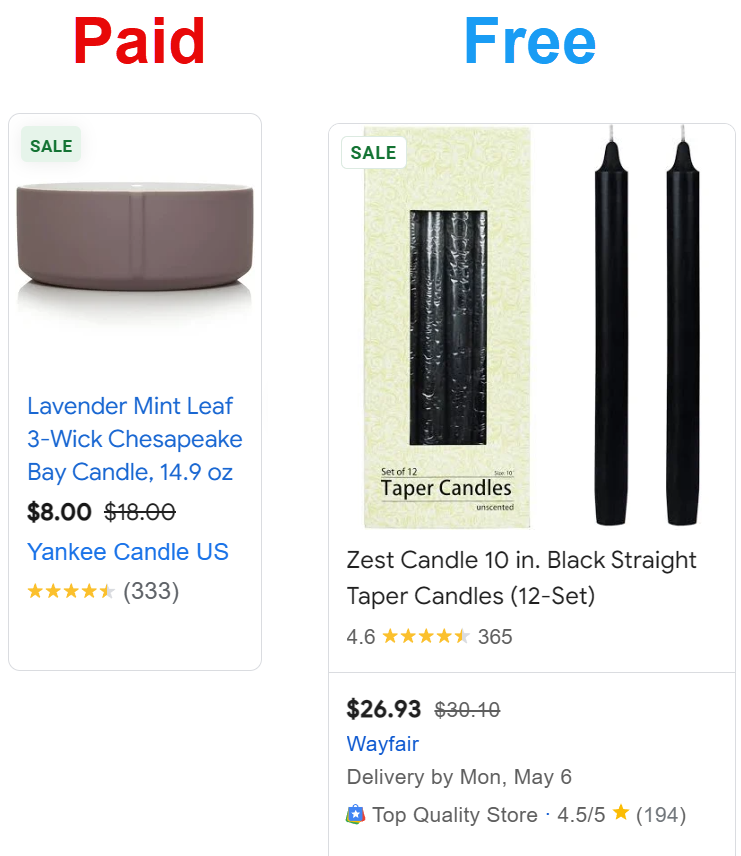
An example of Shopping results showing Sale price annotations. Both a Shopping ad (left) and a free listing (right) display a green “SALE” label. The original prices ($18.00 and $30.10) are crossed out next to the discounted prices ($8.00 and $26.93). This visual cue makes the discount obvious to shoppers, drawing attention to these products.
Running a sale at Google’s suggested price can have a powerful impact on your product’s visibility and attractiveness. Here’s how adjusting your price, as recommended, can pay off:
- Higher Ad Rank & More Impressions: On Google Shopping, price is a factor in ad ranking and visibility. If your price is too high, even a good bid might not secure the top spot because Google’s algorithm knows users prefer cheaper options. By lowering your price (even modestly), you become more competitive. Google has predicted that many products would get significantly more impressions if priced at the suggested sale level. More impressions mean your product shows up more frequently in shopping results, putting it in front of more potential customers.
- Eye-Catching Sale Annotations: When you use the sale price as suggested, your Shopping ads and free listings gain a visual edge. As shown above, Google will display a “Sale” badge and strike through the old price next to your new price. This presentation immediately tells shoppers they’re looking at a discounted item. It helps customers compare the two prices and see the savings, which convinces them that your deal is a great bargain. The result? Shoppers are more likely to click on your product. An item with a sale badge tends to have a higher click-through rate than the same item with just a single (higher) price because everyone loves a deal.
- Improved Conversions: A lower price can reduce friction in the buying decision. If a shopper clicks through and sees a price that’s 10% lower than before, that could be the nudge they need to purchase. Google’s sale price suggestions are aimed at finding a price point that drives more total sales (and even maximizes your gross profit) by balancing margin per sale against number of sales. For example, if you usually sell a gadget for $50 and Google suggests $45, you might lose $5 per unit in margin, but if that change doubles your sales volume, you come out ahead overall. One small business reported that after adopting Google’s suggested sale price on a popular item, their product’s impressions doubled and conversions increased by a third – ultimately yielding higher weekly revenue than when the item was full price. This scenario shows how a strategic discount can pay off in volume.
- Competitive Advantage: Many big retailers use dynamic pricing tools or run frequent sales in crowded product categories. As a small business, it’s hard to keep up with everything manually. Sale Price Suggestions give you an automated assist – leveraging Google’s vast market data so you can compete smarter. If all your competitors are a bit cheaper, you might not have realized it until your ads underperformed. Now Google is directly telling you, “a slight price drop could make you competitive.” By acting on it, you can capture shoppers who otherwise would have scrolled past your listing. It’s an equalizer for small merchants, leveling the playing field without requiring dedicated analysts or pricey software.
- Google’s Automatic Solution: You can use a feature to automate this all natively in Shopify using the multifeeds app. So, all you are paying for is the multifeed app we use for all our clients and Google’s free competitive data.
In short, Google’s sale price suggestions can improve both your listings’ visibility (impressions) and attractiveness (clicks and conversions). You benefit from Google’s insights on shopper behavior – for free. Of course, testing these changes is wise, which brings us to our next point.
Tips for Testing and Optimizing Your Prices with Google’s Suggestions

Changing prices can feel risky, so here are some practical tips to make the most of Sale Price Suggestions in a controlled, effective way:
- Start Small: You don’t have to sell your entire catalog simultaneously. Pick a few products (perhaps your best sellers or those with a strong suggestion from Google) to experiment with. This limits your risk and lets you learn what works best before scaling up.
- Use Time-Limited Sales: As mentioned, treat the suggested price as a promotional sale. For example, run the new price for one week or two. This creates urgency for shoppers (“Limited-time sale!”) and ensures you’re not indefinitely locked into a lower margin. After the sale period, evaluate the results and decide if and when to run it again.
- Monitor Performance Closely: While the sale is running, keep an eye on your key metrics. Did impressions go up as predicted? How about clicks and the conversion rate? Look at Google Ads or Merchant Center reports to compare the period before the price change and during the sale. This will confirm if the suggestion delivered the expected boost. It’s possible you’ll see an uptick in clicks but maybe a slightly lower conversion rate if some people still don’t buy – or vice versa. The overall goal is an increase in total sales and profit.
- Compare Revenue and Profit: It’s easy to get excited about more clicks or orders, but compare net outcomes. Calculate the revenue you earned during the sale vs. before, and factor in the lower price. Did the extra volume offset the lower price point if you sold more units? With a good suggestion, you’ll often find you made more money overall (and cleared more stock) with the sale. If not, you can adjust the strategy.
- Iterate Based on Results: Use what you learn. If Google suggested $45 and it worked well, you could try staying at that price longer, or $47 next time to see if performance holds. If it didn’t work as expected, perhaps the product’s demand isn’t very price-sensitive or the competition changed – keep checking the updated suggestions and try again during a high-traffic season or after tweaking your ads.
- Integrate with Your Marketing Calendar: Plan using sale suggestions around peak shopping periods. For instance, if Black Friday is coming or back-to-school season is big for you, check Merchant Center’s suggestions in advance. Google’s data might reveal an optimal discount to incorporate into your holiday sale, maximizing your visibility when shoppers are most active.
- Remember Other Factors: Pricing is crucial, but don’t forget other elements of your Shopping ads. Ensure your product titles, images, and descriptions are excellent, and that your shipping prices and times are competitive. A sale price can get people in the door, but you want the rest of the experience to close the deal (e.g., a clear product page, good reviews, etc.).
- No Third-Party Tools Needed: Enjoy the fact that this is a free resource. Many large retailers pay for expensive repricing tools or services. As a small business, you have Google’s suggestions at your fingertips with no added cost. Make it a routine to use this feature – it’s like having a pricing consultant on call, for free!
By following these tips, you’ll use Sale Price Suggestions not just as one-off advice, but as part of an ongoing optimization cycle. Test, learn, and refine – the key to steady improvement.
Here are some other great improvement suggestions: https://feedarmy.com/kb/the-importance-of-logos-on-google-shopping-increase-performance-part-2/
And https://feedarmy.com/kb/increase-ranking-improve-performance-for-google-shopping-part-1/