


Google Merchant Center promotions are a feature that allows you to add coupons, discounts, sales, and more on Google Search, Google Shopping, and Google Images.
And as of November 2023, you can also add your promotions to the Google Chrome browser.
Common misunderstanding.
A common misunderstanding is that Google Promotions is a checkout redemption system, so you can not apply markdowns. Most merchants will have a discount on all products before adding them to the basket. But Google Shopping Promotions are required to be redeemed at the checkout. For example, if your promotion is (Get a $25 discount when your order is $150 or more), then this calculation needs configuration in the checkout. Likewise, free or discounted shipping must be configured in the checkout and can not be applied before adding it to the basket.
How Does The Promotion Look Like On Google Shopping?
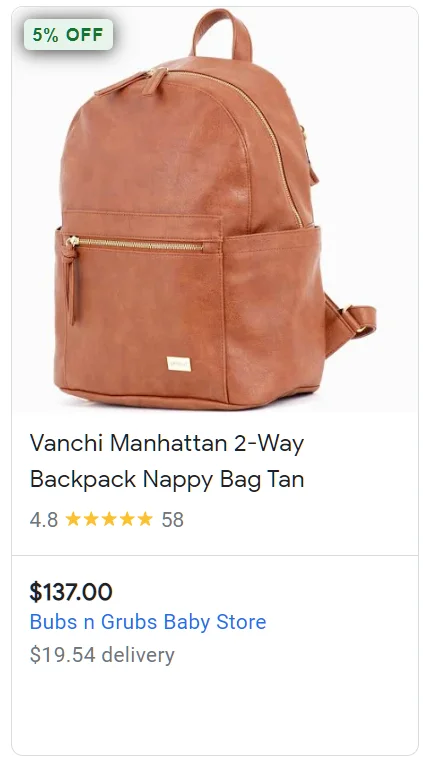
On a single product view, you will see the tag in the corner as demonstrated below.

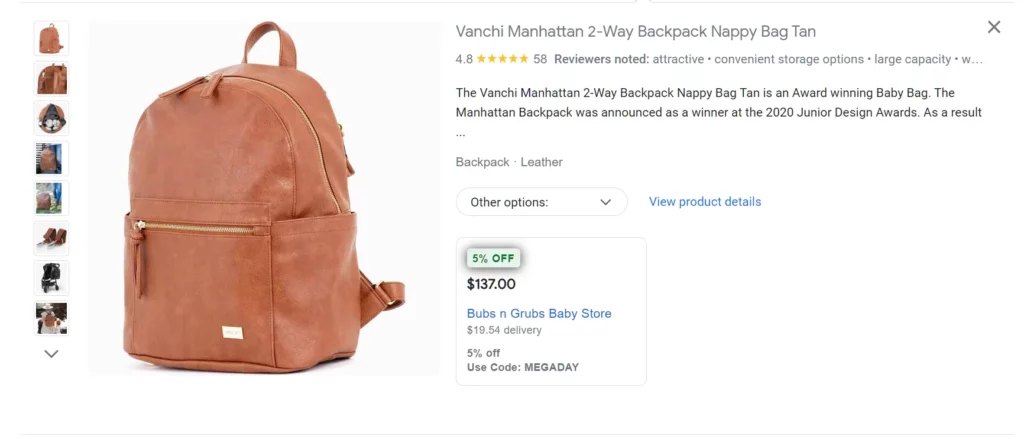
Then, when you click on the promotion or product, the view will expand into a more info-based block, where you can see more details about the promotion, such as the promotion code.


In Google Merchant Center Next, the promotions function is not enabled by default.
How To Enable?
- Go to Google Merchant Center Next
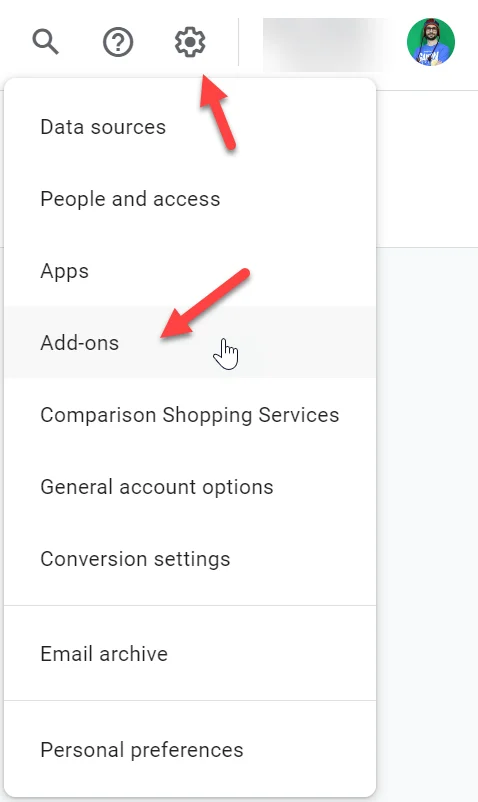
- Gear Icon
- Add-ons or go here: https://merchants.google.com/mc/addons/discover

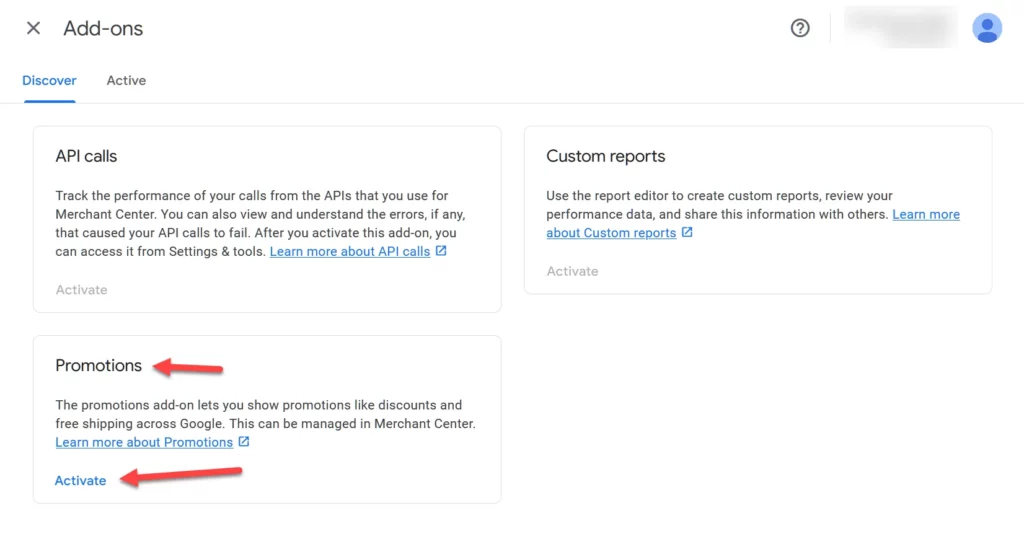
- Click on activate next inside the Promotions card.

How To Add A Promotion?
Once your promotions program is enabled go to Promotions > click on Add Promotion > Choose add promotions one by one.

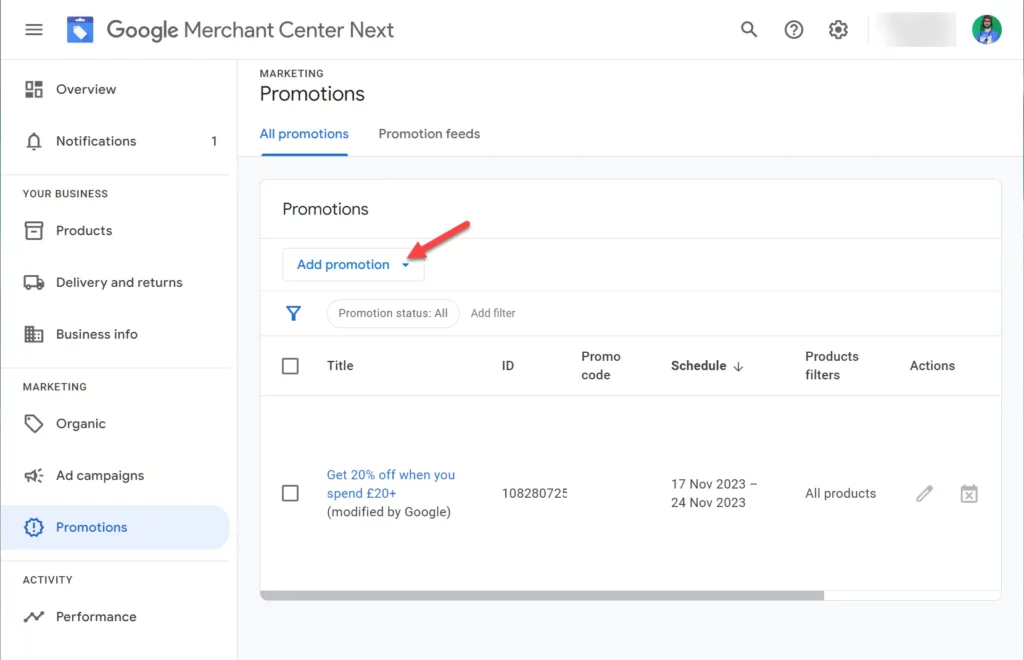
You can now add all the details.
Select your country and language, when choosing a country, the language will be preselected, however you can choose other language if it’s selectable.
Check how the promotion should show on Google
You can choose:
- Show in ads
- Show in free listings
- Chrome Browser


Choose your shopper incentive category:
- Amount off
- Percentage off
- Discount range (up to, and up, between)
- Cashback
- Free shipping
- Free gift


This is a subcategory for the promotion incntive, which will change depending on the option you have chosen above.
- Amount off
- Discount amount
- Apply discount to a quantity of items
- Percentage off
- Discount percent
- Apply discount to a quantity of items
- Limit maximum amount of money customers can receive
- Discount range
- Amount $ off (min max range)
- Percent % off (min max percentage)
- Cashback
- Cashback amount
- Cashback percentage
- Free gift
- Get a free gift (other)
- Get a gift card
- Give a free gift from your inventory
- Free Delivery
- Free standard delivery
- Free overnight delivery
- Free 2-day delivery
Promotion Conditions
- By number of items
- By amount of purchase
- Purchase requirement quantity
- Eligibility requirements
- Subscribe & Save
- First Order
- Sign up for email
- Sign up for text
- Custom requirements


Promotion Title and ID
- Title
- Enter a simply title, such as 20% Discount
- Promotion ID
- A good tip is to add the current date to the promotion ID to avoid duplication errors


Promotion Method
You can apply the promotion to all products or to a specific selection of products.
You can choose:
- Filters
- Mapped product promotion id’s
- Promote all products
- Create an event with the destination URL


Event
If you choose events, you can add the destination URL, images, and specify a product category.


Promo Code
You can add a promotion code If you have a one.


Start and end dates
The timezone will be chosen based on the target country, simply add the start date and end date.


It will take 15 minutes after you created the promtoion before you will see it listed. So don’t panick 🙂
When the promotion is listed the following info will be visible:

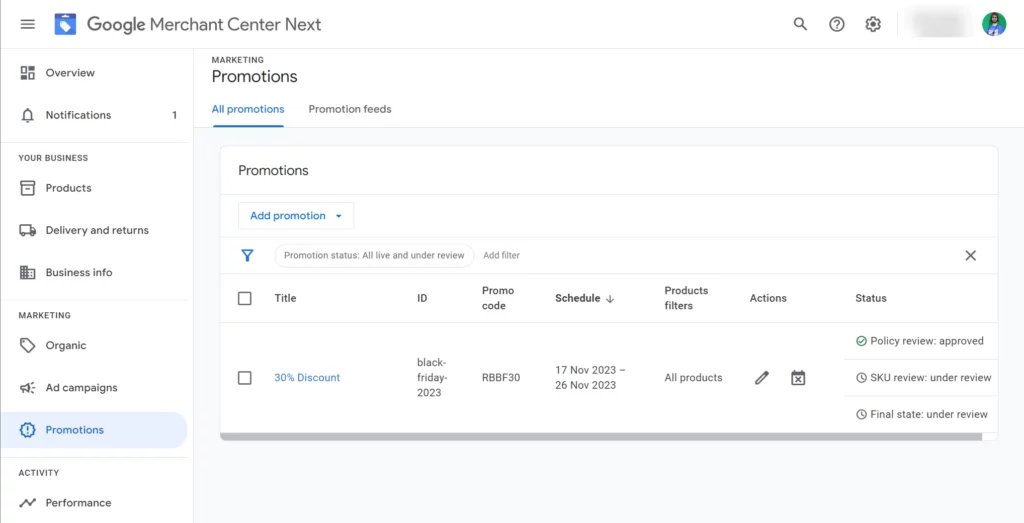
- Title
- ID
- Promo Code
- Shedule
- Product filters
- Actions
- Status
After your promotion is listed, you can also edit the promotion, albeit not every detail. For example, you can change the expiry date.
In Which Countries Can I Add Promotions?
Currently, you can only have the promotion available in the following target countries.
- Australia
- Brazil
- Canada
- France
- Germany
- India
- Italy
- Japan
- Netherlands
- South Korea
- Spain
- United Kingdom
- United States
A Promotion Must Be
- Redeemed at checkout
- No similar promotion can run for more than six months.
- In compliance with Merchant Promotions Policies.
A Promotion Can Not Be
- Markdowns/advertised price reductions. (Discounts and promotions must not already be reflected in the SKU price on the Google Shopping product page or your product landing page, but be applied at checkout or point of sale.)
- Free shipping or discounted shipping with no code required. (Free shipping and discounted shipping promotions MUST include a valid code.)
- Mail-in rebates.
- Of insignificant monetary value (less than 5% or $5 off).