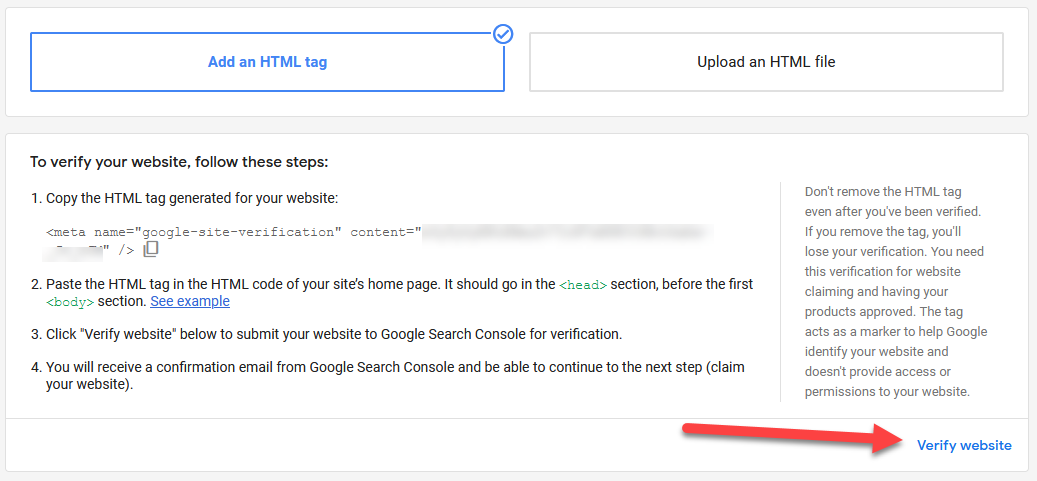
A comprehensive guide to verifying and claiming your Shopify website in Google Merchant Center. Please be aware that this guide is specifically tailored for those utilizing custom domain Shopify websites (not an example.myshopify.com website). If your website uses the default format (e.g., example.myshopify.com), it is ineligible for verification with Google Merchant Center. Please complete the contact form below if you require further assistance or guidance.
Before we begin, ensuring that the website address you intend to claim corresponds precisely with the address displayed upon accessing the product landing page is crucial.
Getting The Tag
Claim your website by going to Google Merchant Center and click on Business info > Edit online store.


Now choose Add an HTML tag or upload an HTML file to your website.


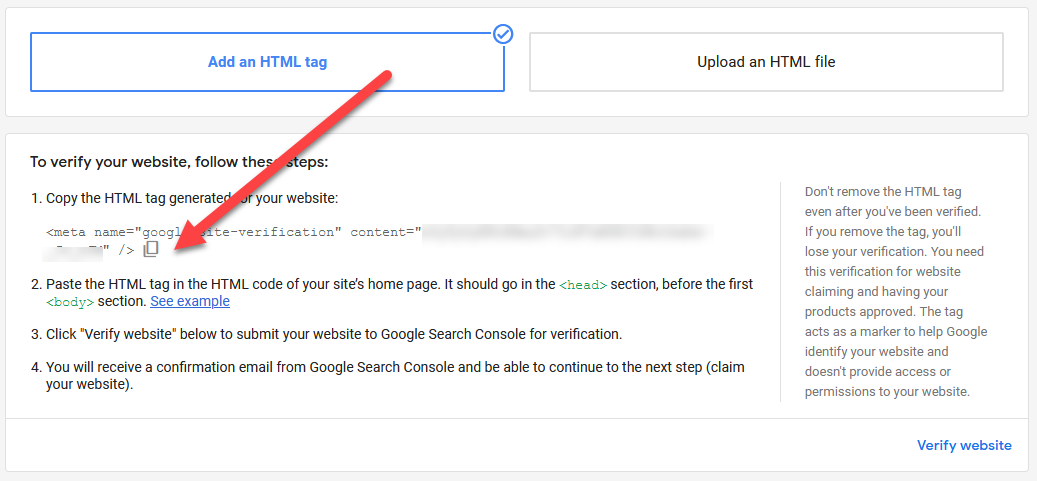
From the options near the bottom, click on I have access to my server and choose, Add an HTML tag to my homepage. Now click on the copy to clipboard icon, next to the tag.
Adding The Tag In Shopify
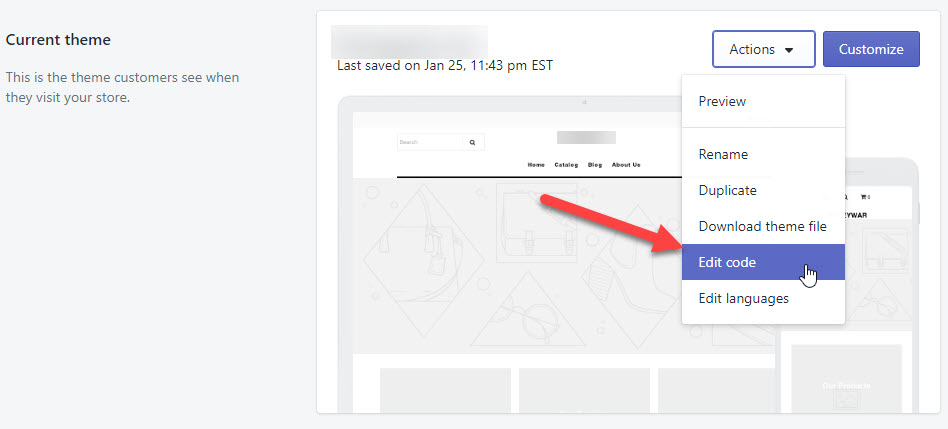
Open up the theme editor by going to Online Store > Themes

In the top right corner click on actions. A menu will appear and click on Edit Code
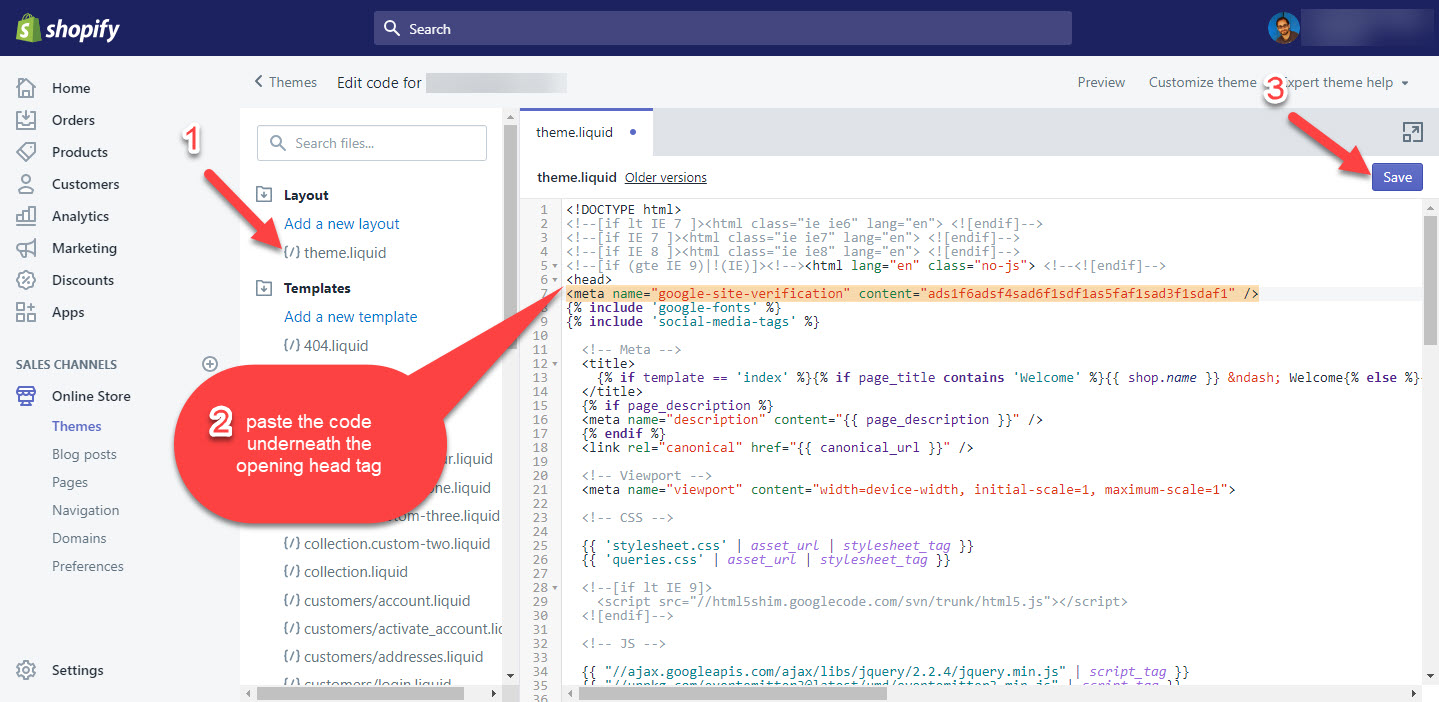
Click on theme.liquid inside the layout folder.
And underneath the opening <head> tag, paste the meta tag and save the layout.
Claiming The Site
Return to Google Merchant Center > gear icon in the top right corner > Business information > Website > Claim Your Website and click on verify URL.