



In this guide, I will explain how to overwrite your product information using a spreadsheet.
First we need to download a copy of our current information.
Step 1 : Login to Google Merchant Center
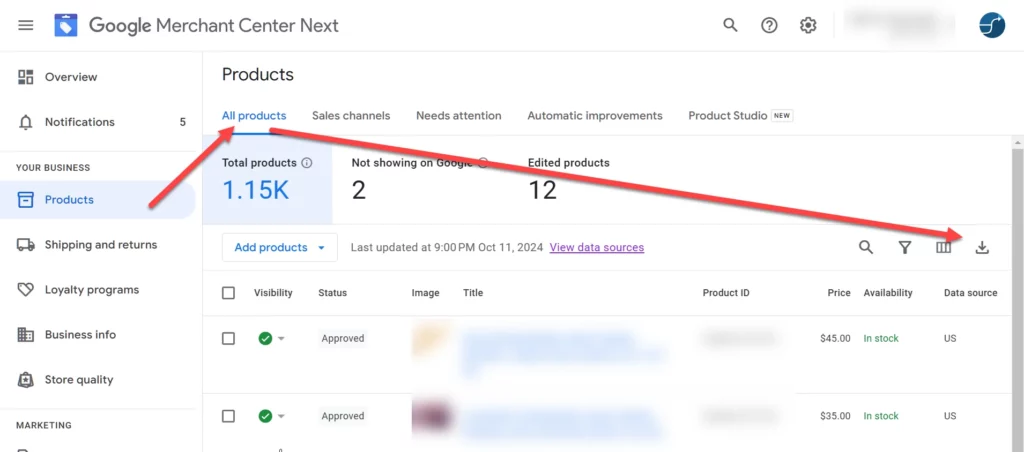
Step 2 : Click on Products > All Products in the left hand menu
Step 3 : Click on the download icon

Step 4 : Open the zip file and extract the file.
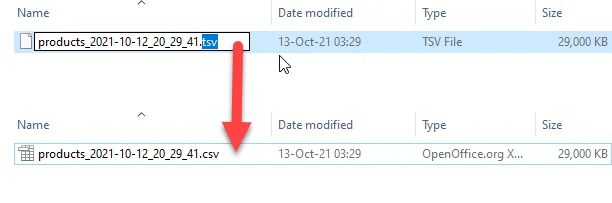
Step 5: Change the file name extension from .tsv to .csv and you can open it in your spreadsheet editor.

Now let’s copy some data.
Step 1 : Make sure to always copy the ID column.
Step 2 : Copy any other columns you want to overwrite, if you don’t see your column, ignore it for now.
Let’s paste the data
Step 1 : Go to Google Merchant Center > Cog Icon (top right) > Data Sources > click on the supplemental sources tab > add supplemental feed

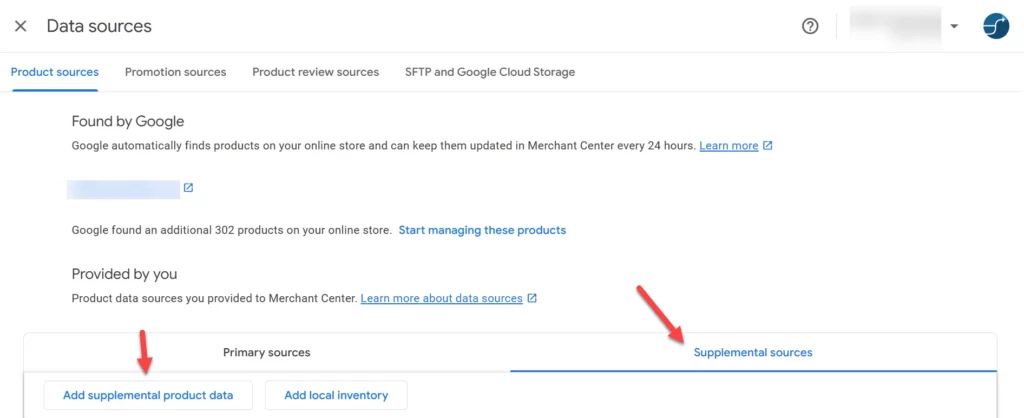
Step 2 : Choose Use a Google Sheets Template and click on Use Template (make sure to allow popups)


Step 3 : You can now remove the template data, and past your own data, for example if you only want to update the color, than have an ID column, and a color column.
If you need to add any other columns, then add the column header and its values. To know what attributes are supported and what you can add please read: https://support.google.com/merchants/answer/7052112?hl=en
Step 4 : Once you are ready with the file, go back to Google merchant center and click on continue.
Step 5 : Select your primary feed

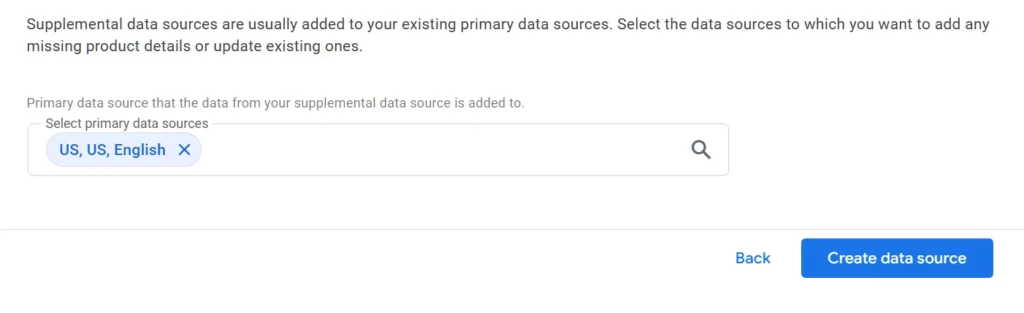
Step 6 : click on create data source, and now you are done.